Teams live captions become inaccurate when the spoken language setting does not match what participants are actually saying. That setting is different from the Teams interface language and from translated caption output. Changing the app’s menus will not teach the caption service which speech to recognize.
Correct the spoken language beside the captions, test with one clear speaker, and only then investigate microphones, multilingual recognition, or organization policy.
Change the language from the caption pane
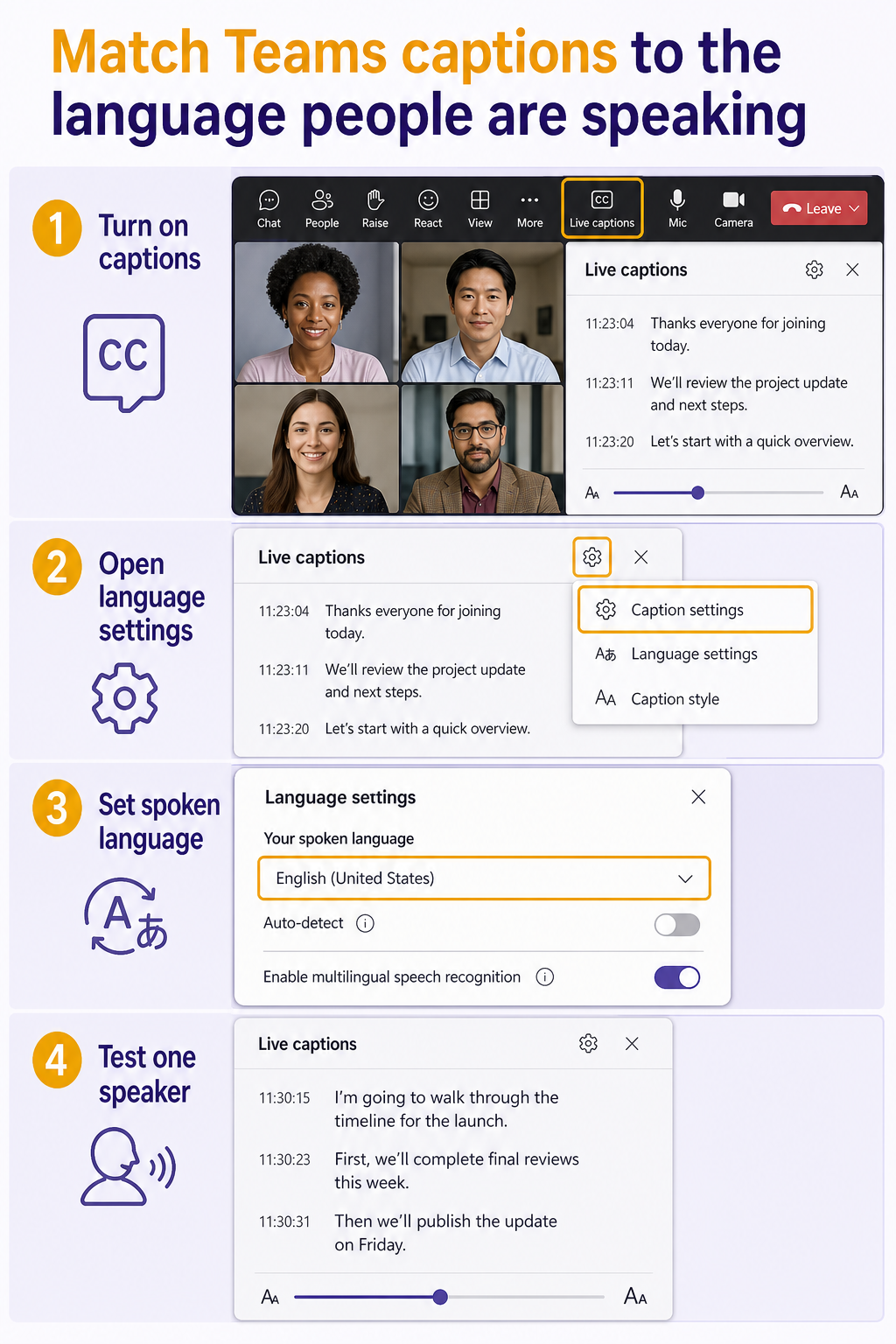
During the meeting, turn on live captions. To the right of captions, select Caption settings > Language settings. Under Your spoken language, choose the language you are speaking rather than the language you want to read.
If auto-detect selected the wrong language, change the dropdown from Auto-detect to the specific language. Microsoft documents the same language setting from the Transcript pane and notes that Interpreter can share detection state with captions and transcription.
Spoken language versus translated output
Spoken language tells Teams how to recognize the audio. Translation controls, where available, determine the language displayed to a viewer. Set recognition correctly first; translating a badly recognized source produces a bad translation.
If the meeting also relies on Copilot or a transcript, the transcription and Copilot setup helps align the recording and transcription prerequisites.
Run a controlled speech test
Ask one participant to speak two short sentences in the selected language while others remain quiet. Use a headset microphone or a quiet room, and avoid proper names during the first test. Confirm that captions follow ordinary words before testing technical vocabulary.
If the language is now correct but many words are wrong, inspect audio quality. Echo, low input level, strong background noise, and overlapping speakers can reduce recognition accuracy without changing the language setting.
Decide how to handle multilingual speech
Some meetings use multilingual speech recognition when the organizer enables it in meeting options. Microsoft still advises each person to set the correct spoken language for caption and transcription accuracy.
When Interpreter is enabled, spoken-language auto-detection can update across Interpreter, captions, and transcription. If participants change languages and auto-detection is off, the organizer or speaker must update the setting. In language-interpretation meetings, captions follow the main speaker rather than the interpreter.
Avoid changing the language for the wrong participant
Your spoken-language choice represents what you say. If another participant’s speech is consistently misrecognized, ask them to set their language where the meeting experience supports individual selection. Do not keep switching your own setting back and forth to compensate for every speaker.
Preserve an accurate post-meeting record
If the meeting is being transcribed, inspect a short section while the call is active. Correct the language early; the transcript and downstream recap cannot reliably reconstruct speech that was recognized under the wrong language.
After the meeting, use the post-meeting record workflow only for its meeting-artifact context; attendance data does not repair caption language. Download or review the transcript according to your organization’s retention and access rules.
When the language control is missing
Confirm that live captions are actually on and open the settings beside the caption pane. Features can differ by meeting type, license, platform, and organizational policy. Try the current Teams desktop client and compare with another supported meeting organized in the same tenant.
If everyone lacks the option, provide the administrator with the meeting type, organizer, client platform, tenant, and whether transcription or Interpreter is enabled. Do not share caption content that contains confidential conversation.
Live-caption language questions
Why did Teams captions switch languages by themselves?
Spoken-language auto-detection may be enabled, especially when Interpreter participates in the meeting experience. Set a specific spoken language if auto-detect is choosing incorrectly. Remember to change it when the actual speaker language changes.
Does changing my Teams display language fix captions?
No. Display language controls menus and interface text. Caption recognition uses the spoken-language setting in the caption or transcript language controls.
Can captions show the interpreter’s speech?
Microsoft notes that, in meetings using language interpretation, captions cover the main speaker rather than the interpreter. The organizer must update the spoken language when the main speaker’s language changes and automatic handling does not do so.
Why are captions still inaccurate after selecting the right language?
Test microphone level, noise, echo, overlapping speech, and pronunciation of specialized terms. A correct language setting removes one cause, but recognition still depends on clean audio. Run a one-speaker test before escalating.
Set the language before the important discussion
For recurring multilingual meetings, add a brief spoken-language check to the opening routine. Confirm captions with one sentence, then begin the recorded agenda. That small verification protects accessibility, the transcript, and any recap that depends on the recognized text without forcing participants to troubleshoot after the conversation is over.
Prepare specialized vocabulary
Live recognition may struggle with product names, acronyms, and personal names even after the language is correct. Share important terms in meeting chat or on a slide so participants can cross-check them, and ask speakers to expand an acronym the first time it is used.
For accessibility-critical sessions, designate someone to monitor captions during the opening minutes. That person can alert the organizer when the spoken language or audio source is wrong without interrupting every speaker. Use CART or another approved accommodation when the meeting requires professional captioning beyond automatic speech recognition.
After changing language settings, do not judge accuracy from one proper noun. Test ordinary sentences, numbers, and a key technical phrase. This separates a general recognition failure from vocabulary that simply needs human clarification.
Repeat the test after anyone changes microphones or joins from a conference-room speaker. A new audio path can introduce echo or distance even though the selected language remains correct. Record which device produced the clean result so the meeting owner can reuse that setup.