A Bluetooth headset that disconnects only during Teams calls is not necessarily losing its radio connection. Windows may switch between playback and communications endpoints, Teams may fall back to another microphone, or the headset may jump to a second paired device through multipoint. The symptom sounds the same, but the fixes are different.
Work from the outside in: prove the headset stays connected to Windows, select it explicitly in Teams, remove competing connections, and then test power and driver behavior.
Build a clean pre-call baseline
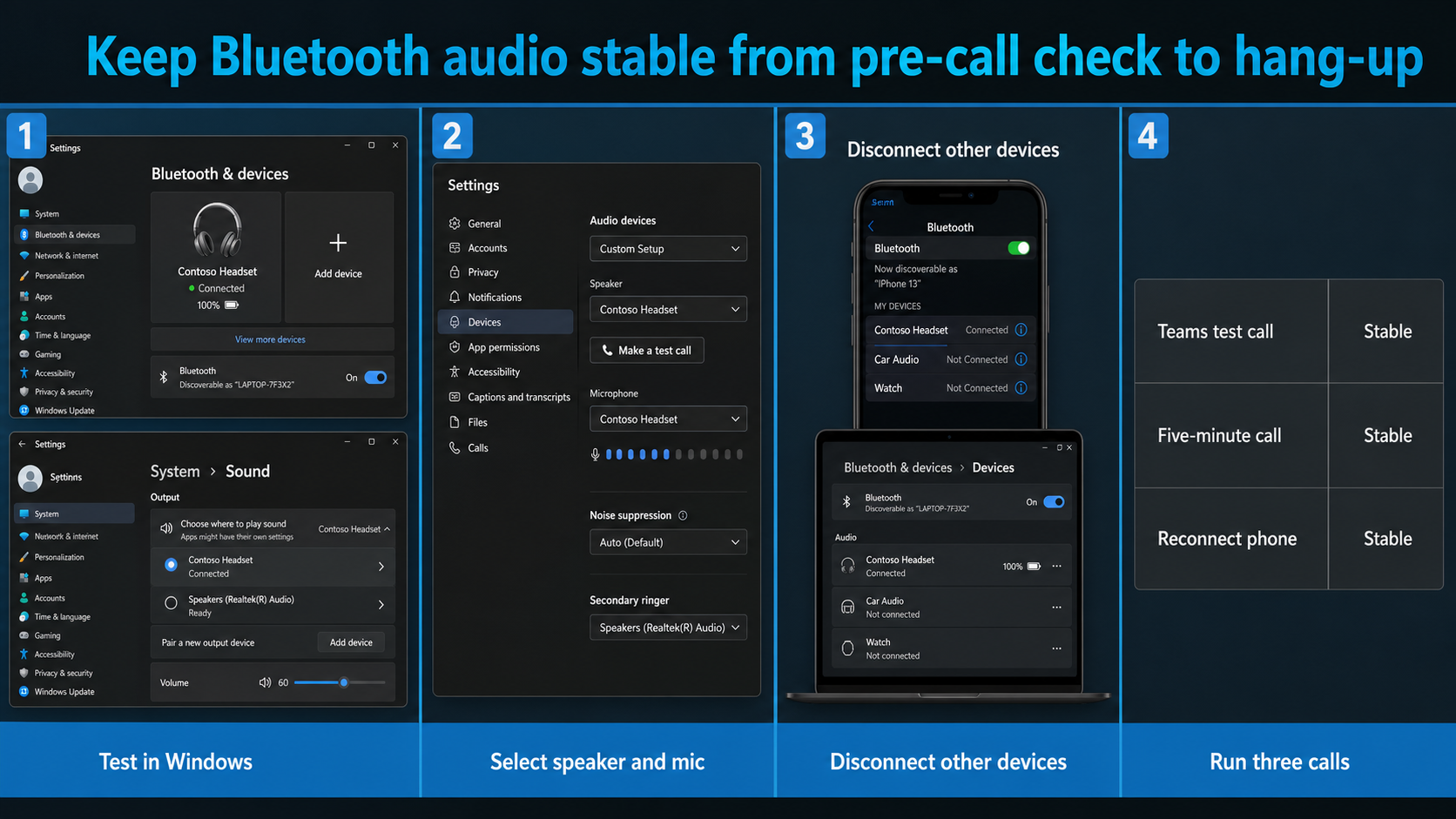
Charge the headset, restart it, and temporarily disconnect it from phones, tablets, and another computer. In Windows Settings > System > Sound, choose the headset for output and input. Play ordinary audio for several minutes before opening Teams.
If Windows itself drops the device, Teams is not the root cause. Remove the pairing under Bluetooth & devices, put the headset in pairing mode, and add it again. Install Windows and device-firmware updates from the manufacturer rather than using an unknown driver utility.
Notice which endpoint disappears
Some headsets expose separate high-quality stereo playback and hands-free communications endpoints. Starting the microphone can change audio mode. Record whether the speaker, microphone, or entire Bluetooth device vanishes when the call connects; that detail narrows the fault considerably.
Lock Teams to the intended device
Open Settings and more > Settings > Devices. Under Audio settings, choose the headset explicitly for Speaker and Microphone instead of leaving either field on an unexpected default. Microsoft also provides Make a test call in supported desktop environments.
Run the test call, listen to the playback, and leave the Devices page open long enough to see whether the selection changes. During a real meeting, use the arrow beside the microphone or More actions > Audio settings to verify the same endpoints.
If calls themselves fail before audio stabilizes, the wider call-connection diagnosis helps separate sign-in and service problems from headset routing.
Eliminate multipoint takeovers
Reconnect one secondary device at a time. An incoming phone notification, media playback, or another calling app can make a multipoint headset switch sources. Disable Bluetooth on the secondary device for one complete Teams call; if the disconnect stops, adjust the headset’s multipoint settings or remove that pairing.
Quit other communications apps completely, including browser meeting tabs. A program holding the microphone can prompt an endpoint switch even when it is not visibly in a call.
Separate network trouble from Bluetooth trouble
A frozen meeting can appear like a headset drop because audio stops. Watch the Teams call-health indicators and test a wired or USB headset on the same network. If both devices fail together, use the network and media checks rather than repeatedly pairing Bluetooth.
Check Windows power and driver behavior
If the headset disconnects after a predictable idle period, review Bluetooth adapter power management in Device Manager when that control is available. Do not disable power saving across every USB and network device; change only the Bluetooth adapter involved and document the original state.
In Device Manager, update the Bluetooth adapter through Windows Update or the computer manufacturer’s supported driver package. A headset firmware update can also improve multipoint and call-control behavior. Restart after driver or firmware changes before judging the result.
Test without a USB Bluetooth dongle if the computer has a supported internal adapter, or test with a vendor-certified dongle if the headset includes one. Two active Bluetooth radios can create confusing duplicate endpoints.
Use a three-call verification
Make one Teams test call, one five-minute internal call, and one call after reconnecting the secondary phone. Note the selected speaker and microphone at the start and end of each test. This sequence reveals whether the repair is stable, whether multipoint reintroduces the issue, and whether the problem occurs only under sustained use.
Bluetooth call questions
Why does music sound good but calls sound poor?
Bluetooth headsets can use a different audio profile when the microphone is active. The communications profile prioritizes two-way voice and may sound narrower than stereo playback. Poorer fidelity alone does not mean the device disconnected.
Should Teams use Default device or the named headset?
Use the named headset while diagnosing so Windows default changes do not silently reroute the call. After several stable tests, you can return to a default-based workflow if you prefer. Keep speaker and microphone on compatible endpoints from the same device.
Why does the headset move to my phone during a meeting?
Multipoint can prioritize a phone call, notification, or media session. Disable the phone’s Bluetooth for one test call. If stability returns, change the headset’s multipoint behavior or keep the phone disconnected during important meetings.
Is reinstalling Teams the best first step?
No. A disconnect visible in Windows Sound or Bluetooth settings sits below Teams. Reinstalling the app will not repair radio pairing, adapter power management, multipoint competition, or headset firmware.
Keep one reliable fallback
After the headset passes the three-call test, keep a wired or certified USB fallback available for critical meetings. The goal is not merely to reconnect once; it is to know which layer failed and how to recover without interrupting the call. Explicit device choices, controlled multipoint pairing, and a supported driver path make that outcome repeatable.
Watch for call-control conflicts
Many certified headsets expose answer, mute, and hang-up controls to Teams. If audio drops when a physical button is pressed, temporarily disable optional button synchronization in Teams device settings where available and repeat the test. This isolates call-control integration from the underlying speaker and microphone path.
Also inspect whether the headset’s companion application is running two device integrations at once. Apply one supported firmware profile and restart both the headset and Teams after changing it. Randomly toggling enhancements during a live meeting makes the result impossible to interpret.
If the problem follows the headset to another computer, collect its firmware version and the exact disconnect sequence for the manufacturer. If another headset fails only on the original computer, focus on the computer’s Bluetooth adapter, driver, and local radio environment.