Teams presence is an availability signal, not a keystroke monitor. It can change to Away when the computer locks or sleeps, when Teams for web cannot detect activity outside its tab, or when a manual status and duration remain set. The fix should restore accurate detection without using mouse-jiggling tools or disabling security controls.
Observe which condition flips the status
Reset your status, keep the Teams window visible, and note the time. Then work normally until the status changes. Check whether Windows locked, the display slept, the browser tab was suspended, a mobile client took priority, or the calendar moved you into another presence state.
Compare the result using the cross-device presence comparison so one stale phone or browser session does not mislead you.
A useful test changes one variable at a time. Keep the same account and content while switching only the client, then keep the client and switch only the account or item. This produces evidence you can act on instead of a pile of unrelated resets.
Clear deliberate status choices
Select your profile picture, choose the current status, and use Reset status. If you intentionally set Available, choose a reasonable duration rather than an indefinite promise. Calendar meetings and calls can still override manual choices according to Teams presence priority.
For a focused explanation of manual availability and duration, the status-duration controls are more useful than repeatedly switching between Away and Available.
Avoid destructive cleanup until you know whether the authoritative copy is in the cloud, mailbox, calendar, or local profile. Export or verify important data first. In managed environments, a policy result should be handed to the administrator with exact timestamps and reproduction steps rather than worked around.
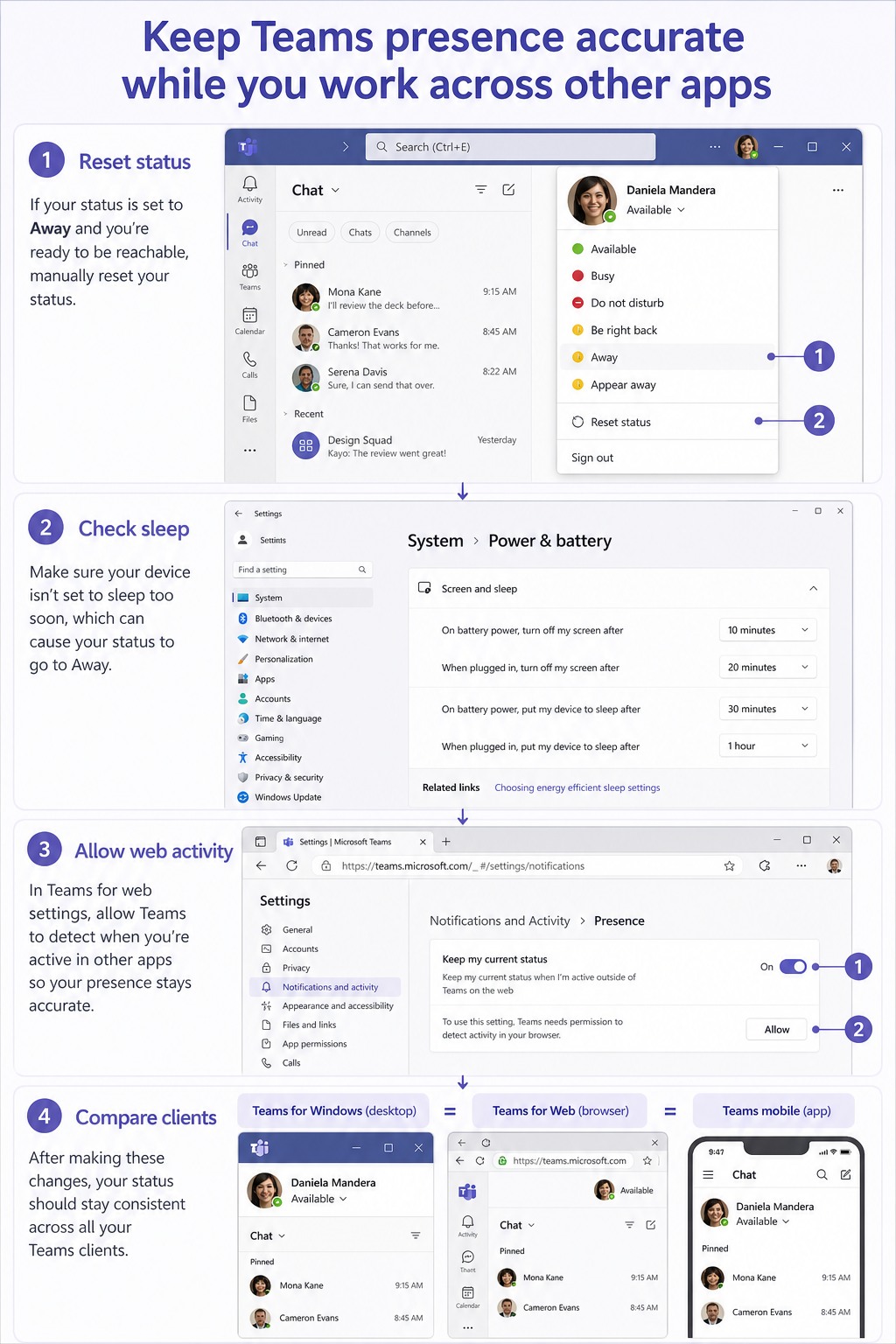
Treat desktop and web differently
Desktop: inspect idle and lock behavior
Microsoft says Teams automatically changes Available to Away when the computer locks or enters idle or sleep. Review Windows sleep settings within organizational policy; do not weaken the screen-lock requirement.
Web: allow activity detection
Teams for web includes a presence option to keep the current status when you are active outside Teams. The browser asks permission to detect that activity. If you block it, Teams may show Away while you work elsewhere.
Multiple clients: simplify the test
Sign out of unused clients temporarily, then test one current desktop or web session. Reintroduce mobile after the status behaves correctly.
After each change, repeat the smallest test that originally failed. A successful result in a different client narrows the fault but does not automatically repair the original one. Record the boundary, apply the targeted correction, and test again in the user’s normal workflow.
Escalate a tenant-wide delay
If several coworkers show stale presence across clients, capture examples and timestamps and ask IT to review service health. A local cache reset is reasonable only when web presence is correct and one desktop client is stale. Do not promise a permanently green state; meetings, calls, locks, and deliberate statuses should still change it.
A useful test changes one variable at a time. Keep the same account and content while switching only the client, then keep the client and switch only the account or item. This produces evidence you can act on instead of a pile of unrelated resets.
Account for calendars, devices, and delayed presence
Use a harmless Teams session for the final comparison, not the user’s confidential production content. Note the signed-in account, client, approximate time, and exact visible result. Then repeat the same action once from a second supported client. A difference between clients points toward local state or a client-specific experience; the same result everywhere points toward the account, source data, policy, or service.
Keep the test matrix small enough to explain. One row can represent the normal user and original item, a second the same user with a clean test item, and a third an approved comparison account when available. Change only one condition between rows. This discipline matters because simultaneous sign-outs, cache clearing, permission changes, and item recreation can hide the cause and make the next incident harder to diagnose.
Check the owner boundary before applying the result. End users can usually refresh a client, choose a supported item, or correct their own setting. Owners control sharing and source data. Administrators control tenant policy, effective assignments, managed browser rules, licensing, and service-health escalation. Stop at that boundary and provide evidence instead of asking the user to bypass a security decision.
Finally, return to the ordinary workflow and repeat the exact action that failed. Confirm both the immediate screen and the downstream result: the other attendee’s view, the saved calendar item, the mailbox copy, the flow run, the synced browser data, or the participant’s lobby entry. A button appearing is only partial recovery when the expected output is still missing.
Presence questions while working
Why does Teams turn Away while I type in another app?
On the web, activity outside Teams may not be visible unless you enable the presence setting and allow the browser permission. On desktop, a lock or idle transition can also trigger Away.
Can I stop Teams from ever showing Away?
That would make presence inaccurate and may conflict with company policy. Correct sleep, permissions, stale sessions, and manual duration instead of trying to defeat normal presence behavior.
Why does my status return to Away after I choose Available?
A manual duration, device lock, calendar state, or another client can take priority. Reset status, test one client, and watch the exact event that causes the next change.
Aim for accurate, not artificially green
The best result is a repeatable test that identifies the responsible layer and leaves the user’s data and security controls intact. Keep the successful change, undo speculative ones, and share the narrow evidence with the owner of any policy or service dependency. Retest in the normal client before treating the incident as resolved. If the symptom returns, compare it with the recorded boundary before repeating cleanup; recurrence after the same trigger is far more useful than a vague report that the app failed again.