Teams can produce an attendance and engagement report for supported meetings and events, but Power Automate does not magically receive every meeting report as a clean trigger. The dependable pattern starts with governance: enable attendance reporting, identify the organizer who can retrieve the data, and place each exported file into a controlled OneDrive or SharePoint intake folder.
From there, a cloud flow can process a predictable file, create normalized records, and notify the report owner. The design should preserve the original export because attendee names, join and leave times, and engagement fields may be needed for audit or correction. Automation should reduce repetitive handling without pretending that every tenant exposes identical fields.
Define the report contract before building the flow
Write down the meeting types in scope, the organizer, the expected export cadence, and the minimum columns needed by the business. Microsoft’s admin documentation explains that attendance reporting depends on meeting policy and that organizers, not administrators, normally access their own reports. A flow cannot compensate for a disabled policy or an unavailable source report.
Decide whether the output is operational or evidentiary. A simple weekly participation summary can tolerate manual review, while compliance reporting needs source retention, identity handling, and controlled corrections. The post-meeting attendance checks provide a useful manual baseline before you automate the handoff.
- Name the organizer or report custodian.
- Choose an intake folder and filename convention.
- Define required attendee and time fields.
- Set retention and privacy expectations.
- Choose the destination list, workbook, or approved data store.
Build a controlled intake pipeline
Land the original export
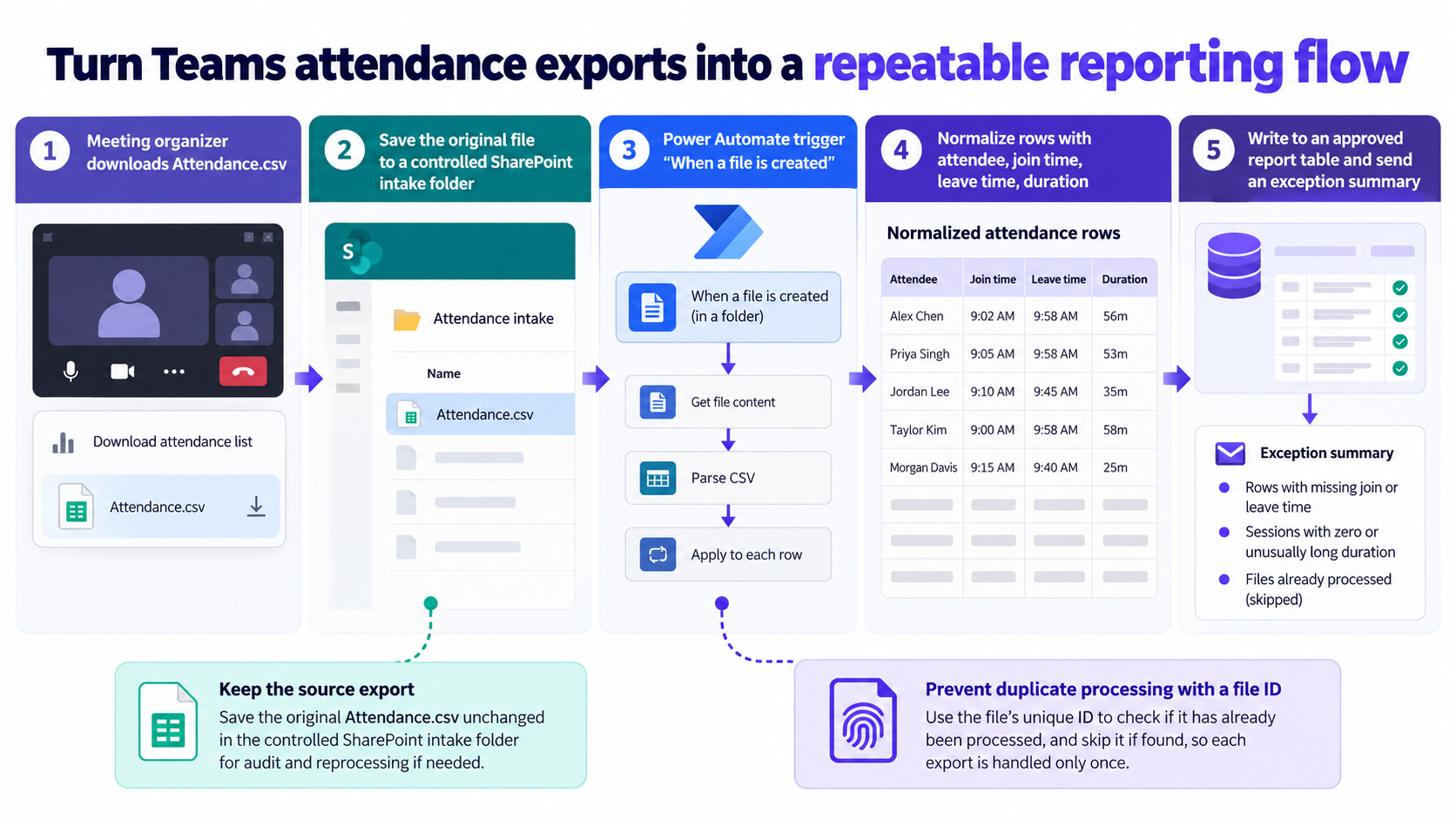
Download the attendance report after the meeting and save it unchanged in the intake folder. If your meeting experience or licensed API provides another approved retrieval route, document it separately. Avoid renaming columns inside the source file because the flow should be able to prove what it received.
Trigger on a new file
Use a OneDrive for Business or SharePoint file-created trigger for the intake location. Add a condition for the expected extension and naming pattern so unrelated uploads do not enter the reporting path. Move rejected files to a review folder instead of silently ignoring them.
Normalize the rows
Parse the export into the smallest stable fields the report needs, such as meeting identifier, attendee identity, join time, leave time, and duration when supplied. CSV parsing often needs careful handling of delimiters and quoted values; test with names that contain punctuation and with attendees who join more than once.
Write the report and log the run
Create or update records in the approved destination and write a processing status with the source filename, row count, time, and result. Use idempotency logic so rerunning the same export does not create duplicate attendance rows. Send a concise exception notice when counts or required fields fail validation.
Validate with awkward meetings, not only a perfect sample
Test a meeting with a late joiner, a rejoin, an external attendee, and a missing optional field. Compare a small sample of normalized rows with the original export. The purpose is not to force every attendee into one row; it is to retain enough detail that the report’s aggregation can be explained.
Also test the permission boundary by using the real flow connection owner and destination permissions. If the source report itself is missing, the organizer-side recovery guide is more relevant than changing expressions in the flow. Keep source availability and transformation errors as separate failure categories.
Protect privacy and operational clarity
Attendance data can reveal identity, behavior, and working patterns. Store only the fields the stated purpose needs, restrict access to the output, and apply the organization’s retention policy. Do not publish attendee-level data to a broad Teams channel just because the flow can post there.
Document who resolves rejected files and how corrected exports are rerun. A useful automation has an owner, a visible failure path, and a reconciliation method. Without those controls, a green run history can still produce an incomplete business report.
Design the report for repeatable attendance decisions
Decide which columns matter before building the flow. Most teams need meeting date, participant identity, join time, leave time, and duration; they rarely need every raw event in the final view. Store the report in a controlled SharePoint or OneDrive location, and avoid posting attendance details into a broad channel when the data is sensitive.
Run the workflow against a small internal meeting first. Compare several participants with the native attendance export, note how reconnects or anonymous attendees appear, and document the expected exceptions in the destination report so readers do not mistake every duplicate row for an error.
Attendance automation FAQ
Can Power Automate automatically download every Teams attendance report?
Not as a universal built-in meeting trigger in every tenant. The reliable low-code pattern begins when an authorized organizer places the export in a controlled folder, unless your organization implements and governs a supported API route. Design the article’s flow around the source you can actually access.
Why do attendee counts differ from the meeting roster?
A report may contain multiple join and leave intervals for one person, anonymous or external identities, and participants who never fully joined. Define whether your metric counts people, sessions, or rows. Reconcile those rules against a sample export before publishing totals.
Should the flow overwrite an earlier report?
Usually it should preserve the raw export and version the processed result or use a stable meeting key. Overwriting removes evidence that can explain a correction. If the same file is rerun, idempotency checks should update or skip existing records rather than duplicate them.
What if the organizer cannot see an attendance report?
Check the meeting type, organizer role, and the tenant’s attendance-report policy first. An admin can manage policy but generally cannot simply retrieve every organizer’s report through the same user experience. Fix source availability before troubleshooting the transformation flow.
Treat automation as a reporting chain
A dependable Teams attendance report has three visible stages: an authorized source export, a controlled transformation, and a reconciled destination. Preserve the raw file, test duplicate and odd attendee behavior, and make failures actionable. Once those controls work, scheduling and notifications can save time without weakening the report’s credibility.