An anonymous participant is someone joining without a signed-in trusted identity. Their failure can come from the organization-wide setting, the policy assigned to the organizer, lobby configuration, verification, or a bad link. The organizer’s policy matters more than the attendee’s job title.
Reproduce the anonymous path correctly
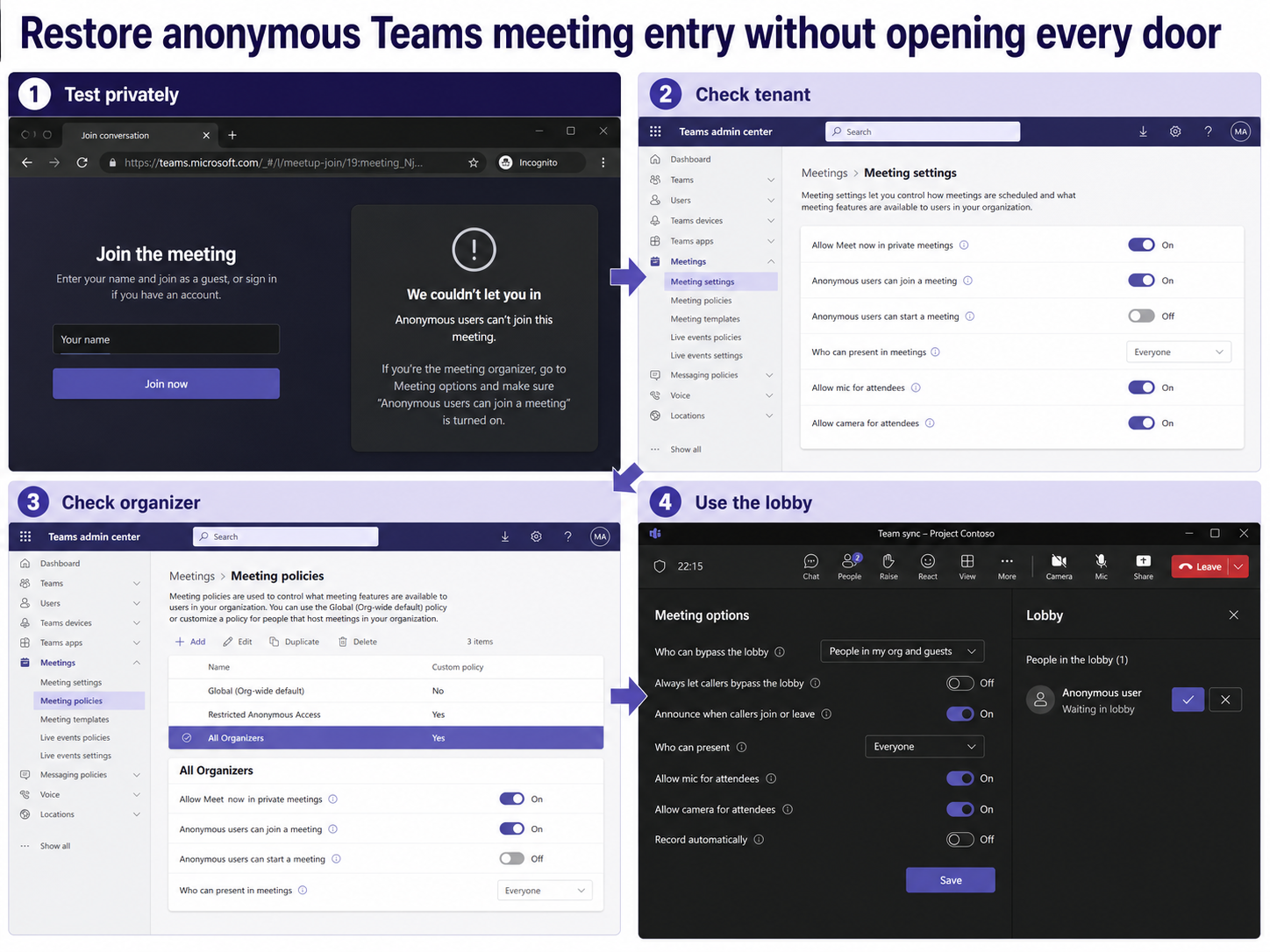
Copy the meeting link into a private browser window where no Microsoft account is signed in. Choose the browser join option and record the exact message. A lobby wait means anonymous join is working; a policy block or forced sign-in message points earlier in the access chain.
Use a clean invitation-link test if forwarded or rewritten links might be the issue. Do not publish the real production link while testing.
After each change, repeat the smallest test that originally failed. A successful result in a different client narrows the fault but does not automatically repair the original one. Record the boundary, apply the targeted correction, and test again in the user’s normal workflow.
Check both policy layers
Microsoft documents two controls that can block anonymous join: the organization meeting setting and the meeting policy assigned to the organizer. If the organization setting is off, enabling a user policy is not enough. If the tenant setting is on but the organizer’s assigned policy is off, meetings created by that organizer still reject anonymous users.
In Teams admin center, review the effective assignment for the organizer, change only the intended policy scope, save, and allow for propagation. Microsoft notes that changes can take up to 24 hours.
A useful test changes one variable at a time. Keep the same account and content while switching only the client, then keep the client and switch only the account or item. This produces evidence you can act on instead of a pile of unrelated resets.
Separate joining from bypassing the lobby
Anonymous join
This decides whether the person can enter the meeting experience at all.
Who can bypass the lobby
This decides whether an allowed participant waits for admission. An attendee sitting in the lobby is not evidence that anonymous join is broken.
Who can start the meeting
By default, anonymous and dial-in participants may need a verified participant present before the meeting begins. That protects unattended meeting links.
Review the meeting-access tradeoffs before broadening bypass rules for every organizer.
Avoid destructive cleanup until you know whether the authoritative copy is in the cloud, mailbox, calendar, or local profile. Export or verify important data first. In managed environments, a policy result should be handed to the administrator with exact timestamps and reproduction steps rather than worked around.
Retest a newly created meeting
After policy propagation, create a new meeting under the affected organizer and test from a private window. Complete any required human-verification prompt. Confirm the participant reaches either the lobby or meeting, then set Who can bypass the lobby to the least permissive option that meets the event need.
After each change, repeat the smallest test that originally failed. A successful result in a different client narrows the fault but does not automatically repair the original one. Record the boundary, apply the targeted correction, and test again in the user’s normal workflow.
Balance external access with lobby protection
Use a harmless Teams session for the final comparison, not the user’s confidential production content. Note the signed-in account, client, approximate time, and exact visible result. Then repeat the same action once from a second supported client. A difference between clients points toward local state or a client-specific experience; the same result everywhere points toward the account, source data, policy, or service.
Keep the test matrix small enough to explain. One row can represent the normal user and original item, a second the same user with a clean test item, and a third an approved comparison account when available. Change only one condition between rows. This discipline matters because simultaneous sign-outs, cache clearing, permission changes, and item recreation can hide the cause and make the next incident harder to diagnose.
Check the owner boundary before applying the result. End users can usually refresh a client, choose a supported item, or correct their own setting. Owners control sharing and source data. Administrators control tenant policy, effective assignments, managed browser rules, licensing, and service-health escalation. Stop at that boundary and provide evidence instead of asking the user to bypass a security decision.
Finally, return to the ordinary workflow and repeat the exact action that failed. Confirm both the immediate screen and the downstream result: the other attendee’s view, the saved calendar item, the mailbox copy, the flow run, the synced browser data, or the participant’s lobby entry. A button appearing is only partial recovery when the expected output is still missing.
Anonymous-join answers for organizers
Why can a guest join while an anonymous user cannot?
A guest signs in with an identity represented in your tenant; an anonymous participant does not. Teams applies different access controls, so successful guest access does not prove anonymous join is enabled.
Does Everyone in lobby settings enable anonymous join?
No. Lobby bypass settings cannot override anonymous join being disabled at the organization or organizer-policy layer. Enable the correct join policy first, then choose lobby behavior.
Why does the old meeting still fail after the policy change?
Policy changes can take time to propagate, and an old meeting or link may retain confusing state. After waiting the documented window, create a fresh meeting and test with a private browser session.
Open only the intended meeting path
The best result is a repeatable test that identifies the responsible layer and leaves the user’s data and security controls intact. Keep the successful change, undo speculative ones, and share the narrow evidence with the owner of any policy or service dependency. Retest in the normal client before treating the incident as resolved. If the symptom returns, compare it with the recorded boundary before repeating cleanup; recurrence after the same trigger is far more useful than a vague report that the app failed again.