A Copilot agent that answers in the Copilot Studio test panel but stays silent in Microsoft Teams has already passed only the authoring test. The published version, Teams channel, sharing scope, user access, authentication, and connected tools form a separate runtime path. Diagnose that path in order instead of rebuilding the conversation topics.
First establish whether the failure affects every user, one user, or one conversation. That scope tells you whether to look at publishing and channel configuration, recipient entitlement, or a stale chat session.
Build a symptom matrix
Test four combinations with one short, known-good prompt:
- Maker in the Copilot Studio test panel
- Maker in a newly opened Teams chat
- Intended recipient in Teams
- Same recipient through another published surface, when configured
Record whether the agent is absent, opens but never replies, returns an authentication prompt, or displays a named error such as Agent Blocked. Silent behavior and an explicit model-access error should not receive the same fix.
If the agent has not yet been built and tested systematically, the Teams agent setup sequence supplies that baseline. For an existing agent, preserve the working draft and focus on the live deployment.
Follow the published path from source to user
Publish the latest version
Copilot Studio keeps draft changes separate from the live version. Select Publish after changes; adding or editing instructions without republishing does not update Teams. Then use Channels to confirm the Microsoft 365 Copilot and Microsoft Teams channel is connected.
Confirm availability as well as publication
Publishing alone does not distribute a Copilot Studio agent to users. Open the Teams and Microsoft 365 Copilot channel configuration, review Availability options, and confirm the agent is shared with the intended users or group. Microsoft states that only users with agent access can use an installation link.
For limited rollout, verify Show to my teammates and shared users and the relevant visibility option. Organization-wide store placement requires admin approval. Ask the affected user to open the current installation link only after their access is confirmed.
Retest with a clean Teams session
Teams can cache app information. Sign out and back in or refresh Teams on the web, remove the older installed agent when appropriate, and add the current published version. Start a new conversation so a stuck historical session does not contaminate the test.
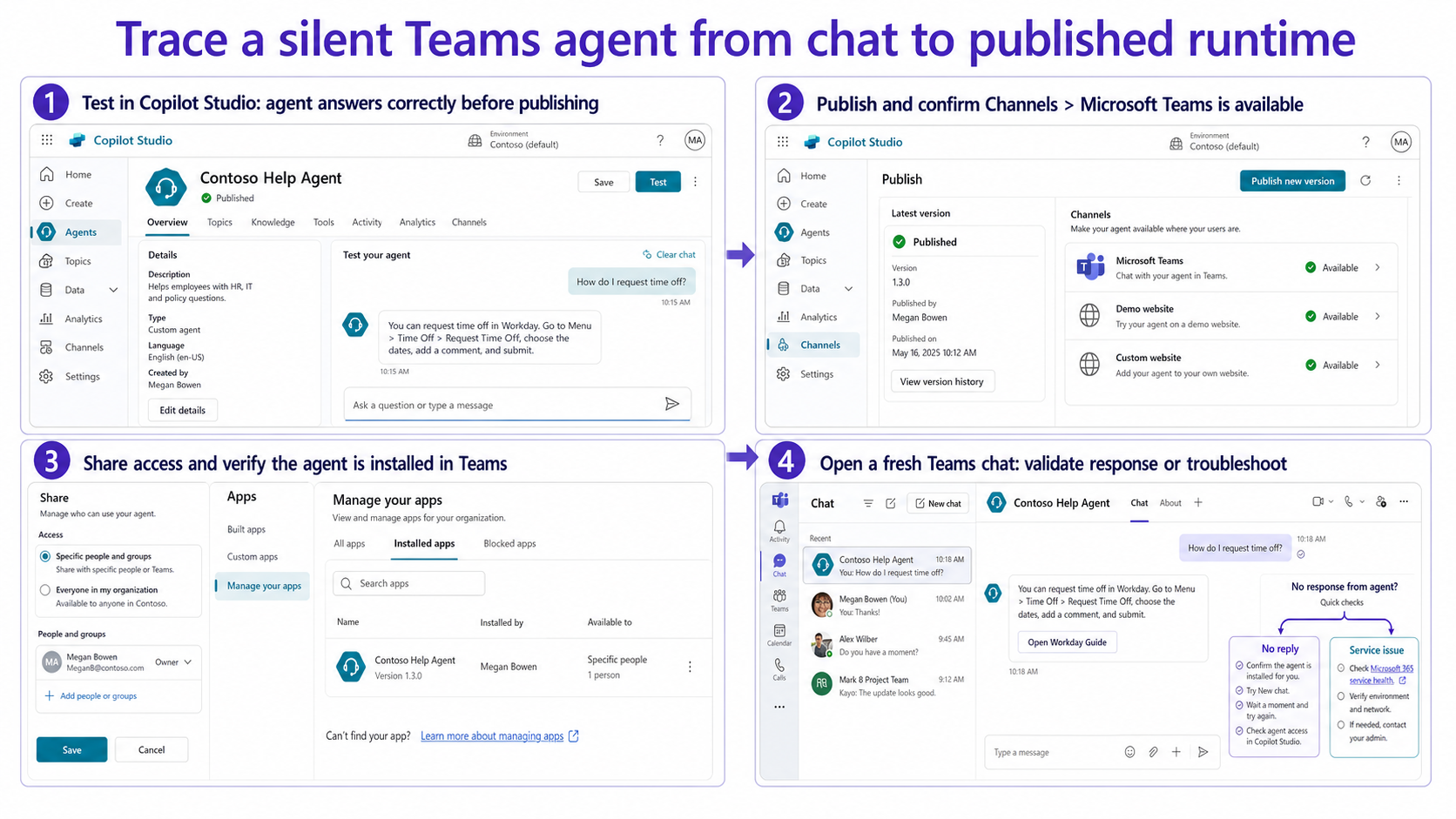
If the shell loads but replies never arrive
At this point, inspect what the agent invokes. Authentication and tool connections can behave differently in the test panel and Teams. Microsoft documents Authenticate with Microsoft as the default for Teams, Power Apps, and Microsoft 365 Copilot, while manually authenticated agents require their own correct Entra configuration.
Remove variables with a minimal topic
Create or use a simple greeting that requires no SharePoint knowledge, flow, connector, file upload, or external API. Publish and test that response. If it works, add the failing capability back one at a time. This isolates the channel from downstream tools without discarding the agent.
If the silent behavior started after a connection, inspect that connection’s authentication and the recipient’s permission to use it. A maker’s connection in the design environment is not proof that every Teams user can complete the live authorization flow.
Treat attachments as a separate test
An agent can respond to text but fail after a Teams file upload if its design does not process the attachment reference. Reproduce with plain text first, then test a small supported attachment. Do not use attachment failure to conclude that the Teams channel itself is down.
Check current known issues before changing governance
Microsoft maintains a Copilot extensibility known-issues page. As of August 2026 it documents an Agent Blocked case for agents using a third-party model when the relevant AI provider has not been enabled for affected users. The supported choices are to grant provider access through Microsoft 365 admin settings or switch the agent to an available Microsoft model.
This is not a generic instruction to enable every provider. Match the exact error and model configuration, choose the smallest approved audience, allow documented propagation time, and retest. A silent response without Agent Blocked still deserves publishing, sharing, authentication, and tool checks first.
When the basic publish path needs a second review, that Teams availability walkthrough helps compare the channel and installation state from the user’s side. Use it as a deployment check, not as a reason to broaden access.
A useful escalation package
Provide the agent ID and environment, last publish time, channel configuration, availability scope, affected user, Teams client, correlation or session details, exact prompt time, and whether the minimal no-tool topic responds. Also identify the model, authentication mode, and first tool invoked after the user message.
Do not send secrets, tokens, or connector credentials. An administrator can review Power Platform data policies, Teams app controls, Entra sign-in events, and service health with the identifiers above. This evidence separates a tenant block from an agent logic failure.
Questions about an unresponsive Teams agent
Why does the agent work in the test panel but not Teams?
The test panel validates the draft authoring experience, while Teams uses the published version, configured channel, availability scope, user identity, and live connections. A successful test panel result therefore narrows the problem but does not validate deployment.
Does sharing the installation link grant access?
No. Microsoft says the link works only for users who already have access to the agent. Share the agent with the correct user or supported group, then use the link for installation.
Should I republish after every repair?
Republish whenever you change instructions, topics, tools, authentication-related configuration, or other agent content captured in the live version. Pure tenant access changes may not alter the draft, but a clean reinstall or chat is still useful after they propagate.
What if only prompts with a file make the agent hang?
Test plain text and attachment prompts separately. Confirm the agent is designed to receive and resolve Teams attachment references and that any downstream connection can access the file. Keep a fallback response so unsupported uploads do not appear as endless silence.
Restore one layer at a time
Preserve the working draft, publish it, verify the Teams channel and audience, and test a new no-tool conversation. Only then add authentication, knowledge, actions, and attachments back into the path. This method turns “the agent does nothing” into a specific failing layer that a maker or administrator can actually repair.