When a Teams meeting transcript will not download, the transcript may still be available. The usual problem is that you are opening the wrong meeting occurrence, looking at the recording menu instead of the transcript menu, or using an account that can see the meeting but cannot download its artifacts.
Give Teams a few minutes after the meeting ends before treating the transcript as missing. A recording can appear before the transcript finishes processing, and a recap can show summary content before the transcript file is ready.
Open the exact meeting recap
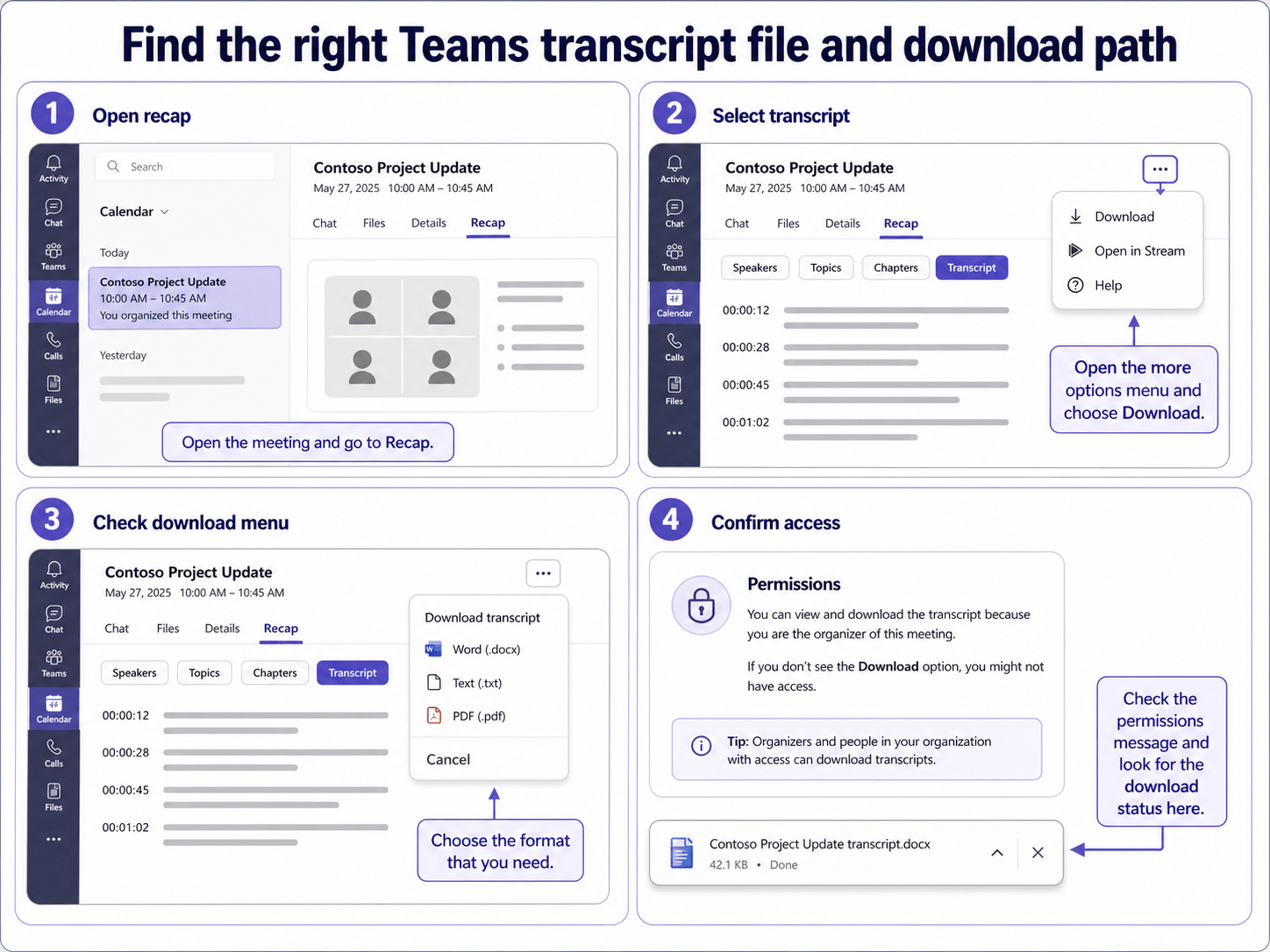
Use Teams Calendar or the Meet app to open the past meeting, then choose Recap. If the meeting is recurring, select the exact occurrence that matches the meeting date and time. A transcript from one occurrence will not appear under another occurrence with the same title.
- Confirm transcription was started during the meeting.
- Open the past meeting from Teams Calendar, not only from chat.
- Check the Transcript tab inside Recap.
- Make sure you are signed in with the account that was invited.
If you also need the attendance file, use the Teams attendance report steps separately. Attendance reports and transcripts are different artifacts with different menus.
Use the transcript menu, not the recording menu
Teams separates recordings and transcripts. The recording menu may only offer video actions. Select the transcript itself, then open the transcript options menu to download the available format.
If nothing happens after clicking Download, check the browser’s download area, pop-up setting, and Downloads folder. Then test the same meeting in Teams on the web. If the web version downloads correctly, the desktop app or local download path is the problem.
Confirm the organizer’s access settings
If the organizer can download the transcript but you cannot, the transcript is probably not lost. Ask the organizer to review recording and transcript access for the meeting. External attendees, forwarded invite recipients, and users who joined with a different account often have limited access.
When every artifact is blocked, including recording, attendance, and files, treat it as a broader meeting-access issue. If only the transcript is missing, focus on transcript processing, transcript policy, or the transcript menu.
When no transcript was created
If there is no Transcript tab and the organizer confirms transcription was never started, there may be nothing official to download. Do not upload a sensitive recording to a third-party transcription tool unless your organization permits it.
For recurring meetings, assign one organizer or co-organizer to start transcription at the beginning and check the recap afterward. If the original issue was that the Teams meeting itself did not land correctly in Outlook, fix that path with the Teams meeting link checks before relying on transcripts for the next meeting.
Questions before you call the transcript missing
Why do I see the recording but not the transcript?
The recording and transcript are separate meeting artifacts. The transcript may still be processing, may not have been started, or may have different access rules from the recording.
Can an attendee download the transcript?
It depends on meeting policy and organizer settings. If an attendee cannot see the download option, the organizer should confirm transcript access for that participant.
Why does the download button do nothing?
Check browser downloads, pop-up blocking, and Teams on the web. If the same account downloads from the web, the desktop client or local download path is likely responsible.
The reliable path is exact meeting occurrence, Recap, Transcript, transcript menu, and then organizer access. That order prevents you from declaring a transcript lost when it is only still processing or hidden behind permissions.