SharePoint metadata is stored in library columns. Marking a column required tells SharePoint that each document needs a value, but the modern upload experience can still place the file in the library before the uploader completes its properties. Your design must therefore combine required columns with a clear completion view, content approval or check-out rules where appropriate, and a verification process.
Start with one or two useful fields rather than making every possible attribute mandatory. A short controlled Choice column such as Document type is easier to complete and report on than a free-text field whose values drift.
Design the metadata before changing the library
List the decisions users make when they search, filter, retain, or route a document. Good required fields support those decisions: document type, client, project, confidentiality level, or review state. Avoid requiring values that SharePoint already captures, such as Created or Modified, and avoid fields that uploaders cannot know.
Choose the right column type. Choice is useful for a small controlled vocabulary; managed metadata supports centrally governed terms; Person identifies accountable users; Date supports lifecycle rules. The SharePoint metadata overview provides a related foundation for naming and displaying columns.
- Use short field names and descriptions.
- Limit choices to values people understand.
- Decide whether folders or content types set defaults.
- Identify bulk-upload and sync-client behavior.
- Name an owner for the vocabulary.
Create a required library column
Open library settings
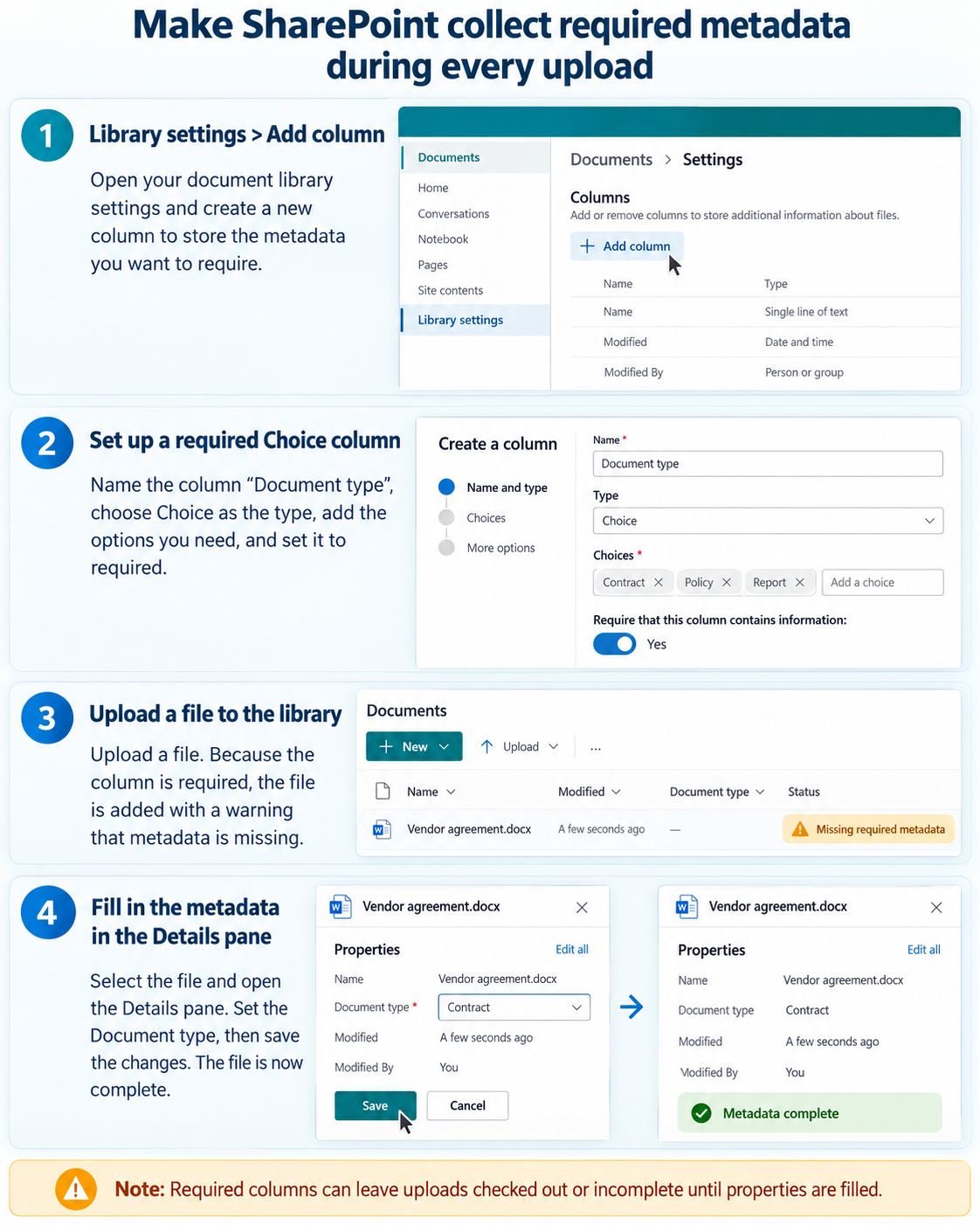
Open the document library, select Settings, then Library settings or Add column in the modern command bar. You need permission to manage the library. Create the field at library level for a local rule or as a site column/content-type field when several libraries should share the definition.
Configure the field and make it required
Name the column, select its type, add choices or term-set configuration, and set Require that this column contains information to Yes. Add a helpful description that tells uploaders which value to choose. Save and expose the column in the main working view.
Test upload and property editing
Upload a small test document. Select it and open the Details pane or Edit all properties, fill the required value, and save. Confirm that the chosen metadata appears in the library view and remains attached when the file is edited.
Make incomplete uploads visible and actionable
A required column does not always behave like a web-form gate that blocks the file bytes from arriving. Depending on the library experience and settings, the file may appear with missing properties, remain checked out, or be unavailable to others until metadata is completed. Design a view filtered for blank required fields and assign someone to monitor it.
If classification must be completed before broad visibility, consider requiring check-out or content approval after testing the impact on coauthoring and automation. The document approval workflow guide can complement metadata rules, but approval should not be added only to hide a poorly designed upload experience.
Account for folders, sync, migration, and automation
Dragging many files, using OneDrive sync, copying between libraries, or migrating content can create items before users see a metadata form. Define a bulk-classification step and verify whether defaults or content types apply in those routes. Do not assume a column marked required will interrupt File Explorer with a prompt.
Power Automate can detect a created or modified file with an empty field and notify the uploader, move it to a review location, or route it after classification. Avoid a flow that repeatedly updates the same item and retriggers itself. Log the file ID and missing field, then stop notifications when the required value is supplied.
Govern required metadata without frustrating uploaders
Measure completion time and blank-value counts during a pilot. If most users select Other or enter placeholders, the vocabulary or requirement is wrong. Provide defaults only when they are genuinely correct, because a plausible incorrect value is harder to detect than a blank field.
Review columns when projects close or terminology changes. Add new choices before retiring old ones, preserve historical values, and communicate which libraries use the shared column. A small maintained taxonomy produces better search and automation than a large form users rush through.
Create a saved view called Missing metadata that filters each mandatory field for blank values and displays the file owner, modified date, and location. Review it during the pilot and after bulk migrations. This gives library owners an operational control even when an upload route does not show the property form immediately. Assign a named reviewer and response interval for every library.
Questions about required SharePoint metadata
Does a required column block every upload?
Not always at the first upload step. Modern libraries and sync routes can create the file and leave properties incomplete or checked out. Test each route and use views or workflow to surface unfinished metadata.
Why can users upload from File Explorer without a prompt?
The sync client handles file transfer, not an interactive SharePoint property form. Users or an automation must complete required library properties afterward, and some library rules can keep the file incomplete until then.
Should I require managed metadata or a Choice column?
Use Choice for a small library-specific vocabulary. Use managed metadata when terms need central ownership, hierarchy, synonyms, or reuse across sites. Both can be required, but managed terms require additional governance.
Can Power Automate fill required fields?
Yes, when the value can be derived reliably from the uploader, folder, content type, filename, or another system. Keep a review path for ambiguous files rather than inventing a default that corrupts classification.
Require only metadata you can enforce and maintain
Create the column, mark it required, and test every upload route your team uses. Make incomplete items visible, give uploaders a clear Details-pane correction path, and add approval or automation only when the business risk justifies it. Required metadata works when the vocabulary is small, owned, and verified.