Missing action items in a Copilot meeting recap do not always mean the AI failed to hear them. Microsoft has consolidated sales insights under the Sales view in Teams recap, while generation still depends on the transcript, Sales agent, meeting type, access, and processing time. Checking an older tab can make valid insights look absent.
Start with the meeting object and prerequisites, then inspect the current Sales surface. Avoid recreating tasks manually until you know whether the recap is delayed, unsupported, or simply displayed elsewhere.
Open the current sales recap surface
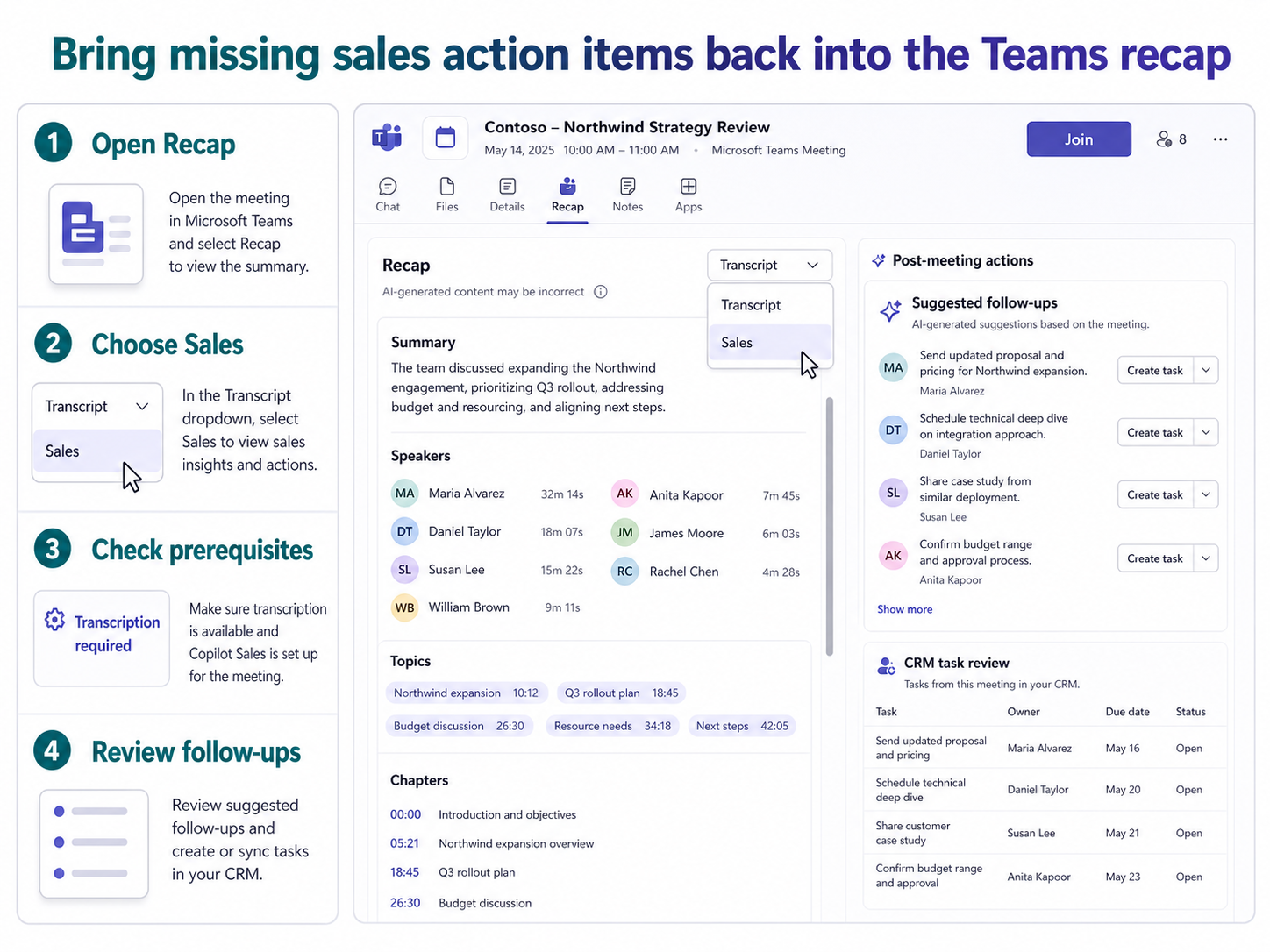
In Teams, open the completed meeting and select Recap. Use the down-arrow next to Transcript, then select Sales. Microsoft moved post-meeting sales insights into this consolidated view; older Copilot for Sales tab instructions may no longer match the current experience.
Look for Post-meeting actions and Suggested follow-ups from the meeting. These are related but not identical. Post-meeting actions can offer a summary email or CRM save action, while suggested follow-ups are the tasks inferred during the conversation.
If the normal recap is also missing, revisit the recap preparation workflow before troubleshooting the sales-specific layer.
Check the prerequisites as a decision tree
Was the meeting transcribed?
Sales insights require transcription. A recording alone is not enough. Open the transcript from recap and confirm that it contains the relevant part of the conversation, including the owner and due date if those were spoken.
Was the Sales agent added?
The Sales agent must be added manually or automatically according to your organization’s setup. If it was not present for the meeting, do not assume it can reconstruct every sales insight afterward.
Is the meeting supported?
Microsoft lists several cases where sales insights are not generated, including recurring meetings, meetings created in Dynamics 365 Sales, multiple start-stop recording segments, missing CRM connection, and insufficient transcript access. Match the meeting against that list before changing licenses.
Wait for processing without losing the follow-up
Long recordings and transcripts can take time to process. Microsoft notes that Teams sends a notification when sales insights are available. Refreshing immediately after the meeting may show a normal transcript while the Sales view is still being prepared.
Create a temporary manual note for urgent commitments, then check again after the notification or a reasonable processing interval. Do not promise the customer that an AI-generated task exists until you see it in recap or CRM.
The meeting-notes setup helps verify recording, transcription, and Copilot availability for future sessions. Apply changes to a short test meeting before relying on them for a customer call.
Inspect access and CRM state
The organizer controls access to the recording and transcript. If one seller sees action items and another does not, compare their access to the meeting artifacts and their Sales agent/CRM sign-in.
Open the Sales agent and verify the CRM connection. Some actions, such as saving notes or creating a CRM task, require a valid connection and appropriate license. A missing Save to CRM button does not necessarily mean the transcript summary is absent; diagnose the specific control that is missing.
Review AI output before creating tasks
When suggested follow-ups return, compare them with the transcript. Edit the description, owner, and date before selecting Create task. AI can miss nuance or assign an implied commitment too strongly, so the seller remains responsible for validation.
If insights were never generated
For a recurring sales cadence, create a non-recurring Teams meeting when the sales-insight workflow is essential and your organization supports that approach. Use one continuous recording/transcription session, add the Sales agent before the call, and confirm transcript access.
If the transcript is present, the meeting is supported, and the Sales view remains empty after processing, collect the meeting ID, organizer, start time, transcript availability, Sales agent status, and CRM sign-in state. That is enough for an administrator to investigate without exposing the customer conversation in a screenshot.
Sales recap questions
Where did the old Copilot for Sales recap tab go?
Microsoft consolidated the experience under the Sales selection in meeting recap. Open Recap, use the control beside Transcript, and choose Sales. The location change can look like lost data when the insights moved.
Can action items appear without transcription?
The documented Sales insight workflow requires a transcript. A recording by itself does not provide the same prerequisite. Confirm transcription before investigating task creation or CRM permissions.
Why can I see a summary but not Create task?
Task creation depends on CRM connection, licensing, and the available recap action. Verify that you are signed into the Sales agent and that the meeting meets the documented conditions. Treat content generation and CRM write access as separate checks.
Should I trust every suggested follow-up?
No. Review the transcript context, owner, and date before creating a task or sending a summary email. Copilot accelerates the draft, but the seller should correct ambiguity and confirm commitments.
Protect the customer follow-up
The safest recovery keeps the human commitment separate from the automation. Record urgent next steps manually, then repair the Sales recap path for future meetings. Once the transcript, agent, meeting type, and access align, the consolidated Sales view should become the repeatable place to review and promote action items into CRM.
Improve what the transcript can capture
Action items are easier to identify when speakers state the owner, task, and timing explicitly. End the meeting with a verbal recap such as “Jordan will send the pricing sheet by Thursday,” then confirm that the sentence appears correctly in the transcript. This improves both human clarity and the material available to the Sales agent.
Avoid speaking several commitments over one another. If a customer corrects an owner or date, repeat the final version clearly. The resulting insight is still AI-generated and must be reviewed, but a precise source reduces ambiguity.
For regulated or sensitive conversations, follow the organization’s recording, transcription, retention, and CRM rules. Do not enable a transcript solely to obtain action items when participants have not received the required notice or consent.