The Windows 11 search box can open correctly, accept your typing, and still show an empty result area. That symptom is different from a frozen Search panel. It usually points to a stalled SearchHost process, a stopped Windows Search service, or an index that does not include the location you are searching.
Work through the checks below in order. Start with the symptom test, because rebuilding a healthy index wastes time and can make results look incomplete for several hours.
Identify what is actually missing
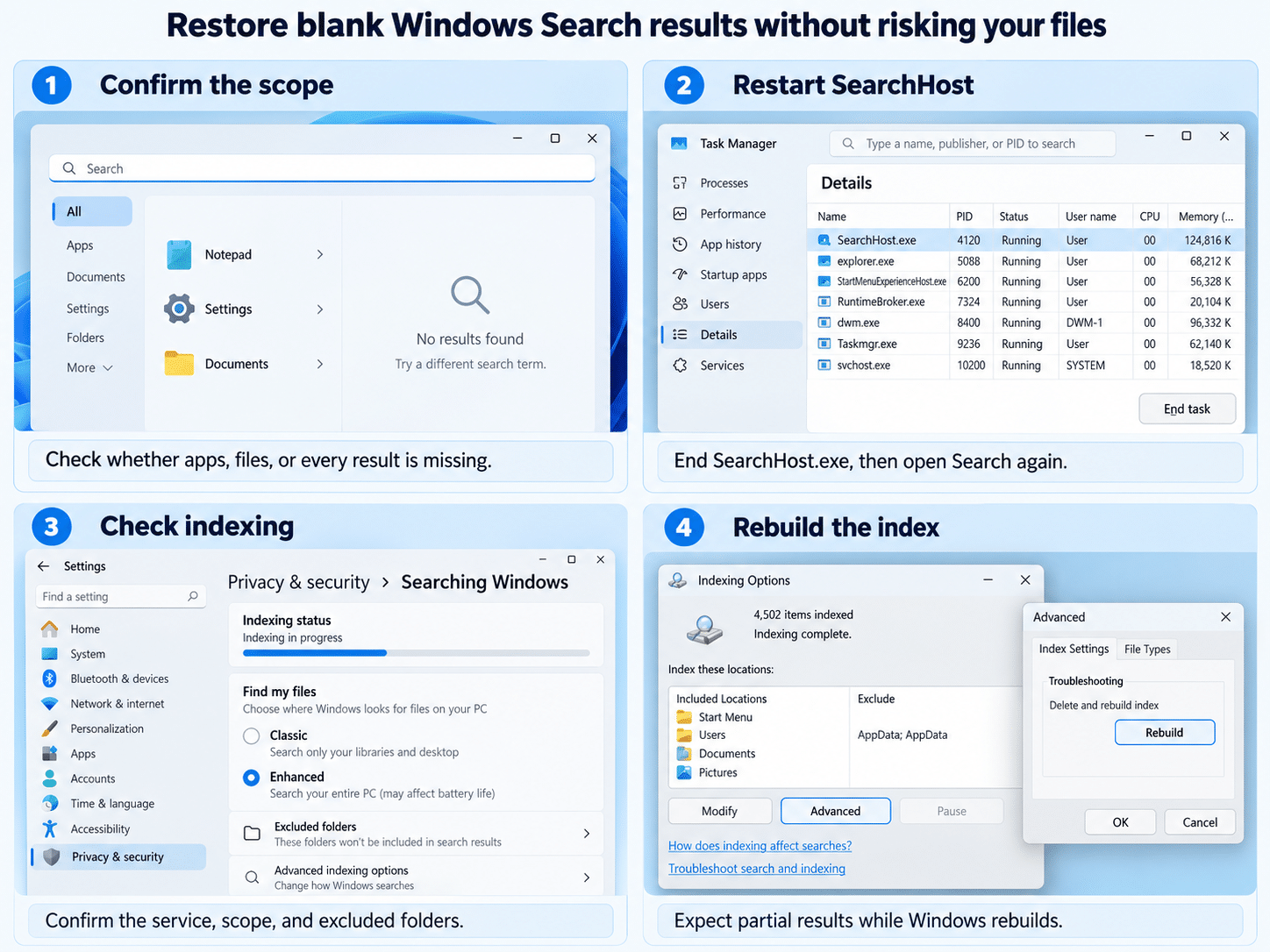
Search for three items that Windows should be able to find: Notepad, Settings, and the exact name of a document you can see in File Explorer. Then note which of these descriptions fits.
Apps are missing but files still appear
If documents appear but built-in apps do not, the index is probably not the first suspect. Restart the Search interface before changing indexing options. This is also the better path when the result pane is completely white or remains blank for every query.
Files are missing but apps appear
If Notepad and Settings appear but your documents do not, check the indexed locations. Windows 11 Classic mode covers common folders such as Documents, Pictures, Music, and the desktop. Files kept elsewhere may require a custom indexed location or Enhanced mode.
Everything is blank
When apps, settings, and files are all absent, treat the problem as a Search process or service failure first. If clicking Search does nothing, spins forever, or closes immediately, use the broader checks for a search panel that will not respond instead; that is a different failure mode.
Refresh the Search interface without changing your files
The quickest recovery is to restart the Windows 11 SearchHost process. Windows launches it again automatically the next time you open Search.
- Press Ctrl + Shift + Esc to open Task Manager.
- Select Details. If the full navigation is hidden, choose More details first.
- Find SearchHost.exe.
- Right-click it, choose End task, and confirm the prompt.
- Open the taskbar search box again and test Notepad.
Ending SearchHost does not delete documents or clear the search index. If the process is missing, restart Windows once and continue with the service check below.
Confirm that Windows Search is running
Press Windows + R, enter services.msc, and select OK. Double-click Windows Search and check these values:
- Service status: Running
- Startup type: Automatic (Delayed Start)
Select Start if the service is stopped. If it is already running, choose Stop, wait a few seconds, and choose Start. On a managed work computer, the controls may be unavailable because an administrator owns the service policy.
Microsoft notes that upgrades, battery-saving conditions, Game Mode, and some optimization tools can pause or disable indexing. Connect a laptop to power and allow a few minutes after an update before assuming the service is broken.
Check whether Windows is indexing the right location
Open Settings > Privacy & security > Searching Windows. Review the indexing status before changing anything. If Windows says indexing is in progress, results can remain incomplete until it finishes.
Under Find my files, choose the scope that fits where you store work:
- Classic is efficient when files live in the desktop and standard library folders.
- Enhanced searches all user folders, but initial indexing takes longer and uses more system resources.
With Classic selected, use Customize search locations and Modify to include a missing folder. Also inspect the excluded-folder list. A folder deliberately excluded from indexing will not become searchable merely because you restart SearchHost.
To confirm the file itself is accessible, open File Explorer and search from the folder that contains it. You can narrow a file hunt with Explorer filters while the main index is recovering. A result that appears in a folder search but not in taskbar Search usually points back to scope or index health.
Rebuild the index when the scope is correct
Rebuild only after SearchHost, the service, and indexed locations have passed their checks. The rebuild recreates Windows’ search database; it does not remove your files.
- In Searching Windows, select Advanced indexing options.
- In Indexing Options, choose Advanced.
- On the Index Settings tab, select Rebuild.
- Confirm the warning and leave the computer connected to power.
Search may return partial results during the rebuild. Microsoft advises allowing up to 24 hours for a large index, although a smaller office PC often finishes sooner. Watch the status in Searching Windows rather than repeatedly starting another rebuild.
Use the official reset only for a persistent blank panel
If the results remain empty after the index reports that it is complete, install pending Windows updates and restart the computer. Then use Microsoft’s official ResetWindowsSearchBox.ps1 script from the Microsoft Download Center. The script requires administrator permission and may require a temporary PowerShell execution-policy change.
Avoid copying an unverified reset command from a forum. Do not delete the Search data folder or registry keys as an early fix; those are advanced recovery actions with a wider impact. On a business device, ask IT to run the official reset if script execution is restricted.
Answers for stubborn blank-result cases
Why did the results disappear after a Windows update?
An upgrade can pause the Windows Search service or rebuild the index. Wait several minutes after sign-in, connect the device to power, and check the indexing status. If Windows is actively indexing, an empty or incomplete list may be temporary rather than evidence of corruption.
Does rebuilding the Windows 11 index delete documents?
No. Rebuilding removes and recreates the catalog that Windows uses to locate content; it does not erase the indexed files. Search results can be incomplete during the rebuild, so verify an important document directly in File Explorer before doing more repair work.
Why can Search find apps but not a document I can see?
The document may sit outside the selected indexing scope, inside an excluded folder, or on a location that is not currently available. Check Classic versus Enhanced mode and the custom location list. For content searches, the file type must also be configured to index properties and file contents.
What if the Windows Search service stops again after every restart?
Check whether a cleanup utility, security product, or organization policy changes the service configuration. The expected startup setting is Automatic (Delayed Start). If the setting reverts on a managed device, send the service status and indexing-status screenshot to IT instead of repeatedly forcing the service on.
The practical takeaway
A blank results panel does not automatically mean the whole Windows installation needs repair. Separate app results from file results, restart SearchHost, confirm the Windows Search service, and correct the indexed scope before rebuilding anything. Use the official Microsoft reset only when the safer checks pass and the completed index still produces no matches. That order preserves your settings, avoids unnecessary destructive steps, and gives you a clear point to escalate on a managed PC.