When pasted slides suddenly adopt new colors, fonts, or layouts, PowerPoint is applying the destination presentation’s theme. Choose Keep Source Formatting when you want the copied slides to retain the original theme. For a larger import, the Reuse Slides pane gives you the same choice before slides enter the destination deck.
Formatting can still shift when the source uses fonts that are missing, custom layouts that conflict, or links to external media. Treat the paste option as the first control, then inspect the imported slides as a set.
Copy a few slides with Paste Options
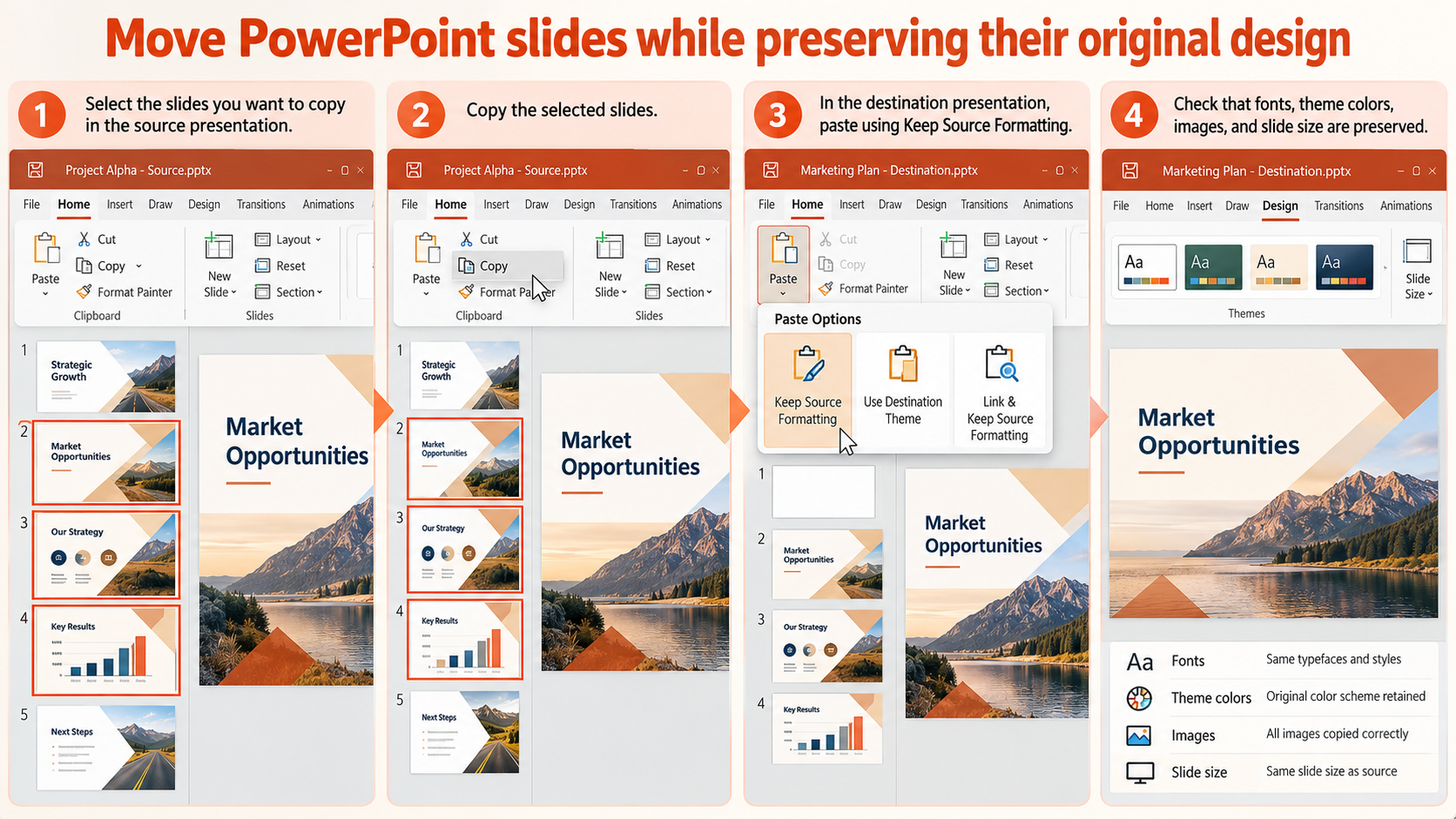
Open both presentations in Normal view. In the source thumbnail pane, select the slides you need. Hold Shift for a continuous group or Ctrl on Windows and Command on Mac for separate slides, then copy them.
In the destination thumbnail pane, select the slide after which the copied slides should appear. Paste, then open the Paste Options control and choose Keep Source Formatting. Microsoft describes the alternative, Use Destination Theme, as the option that adapts copied slides to the receiving deck.
If the Paste Options control disappears
Open Home, select the arrow under Paste, and choose the source-formatting option there. On Windows, verify that Show Paste Options button when content is pasted is enabled in PowerPoint’s Advanced options. In PowerPoint for the web, browser clipboard behavior can differ, so use the displayed paste controls and allow clipboard access if prompted.
Import a larger group with Reuse Slides
For a planned merge in the desktop app, select the insertion point, then choose Home > New Slide > Reuse Slides. Open the source PowerPoint file. Before inserting, select Keep source formatting, then choose individual slides or insert all of them.
Microsoft notes that an imported slide is a copy. Editing that copy does not modify the original presentation. The Reuse Slides feature is intended for local source files; Microsoft’s current support note says reuse from cloud files is deprecated, so download or synchronize an approved local copy when needed.
Decide whether two themes belong in one deck
Keeping source formatting can add source masters and layouts to the destination. That is desirable for a guest section with its own visual identity, but it may complicate future maintenance. If the whole deck should follow one brand, paste with the destination theme and rebuild exceptions intentionally.
Open View > Slide Master to see which masters and layouts now exist. The master-layout review is also a good moment to check reading order, title placeholders, contrast, and accessibility instead of treating a visually correct paste as finished.
Diagnose what still changed
Use the symptom to choose the next repair.
- Fonts changed: Install or embed approved fonts where licensing allows, or replace them with a supported family.
- Colors changed: Confirm that the slide retained the source theme and that individual objects are not using destination theme colors.
- Objects moved: Apply the correct imported layout and reset the slide only after checking that custom positioning will not be lost.
- Charts changed: Verify whether the chart is embedded, linked, or using theme colors from the destination.
- Video or audio failed: Confirm that media files are embedded or that valid links travel with the deck.
If formatting looks correct in edit view but fails during the presentation, use the presentation display checks to examine monitor, slideshow, and rendering issues separately.
A reliable inspection pass
Do not review only the first imported slide. Check a title slide, a content-heavy slide, a chart or table slide, and any slide with media or animations. Compare each against the source presentation at the same zoom level.
Then run Slide Show from the first imported slide. Confirm transitions, animation order, speaker notes, hyperlinks, and media playback. A source-formatting paste preserves the theme choice, but it cannot install a missing font or repair a broken external link.
Clean up unused masters cautiously
After the design owner approves the combined deck, unused masters can sometimes be removed to reduce clutter. Do not delete a master merely because its layout looks similar to another. First confirm that no slide, notes page, or custom layout depends on it.
Questions about copied PowerPoint formatting
Why did my slide change even though I chose Keep Source Formatting?
The option preserves the source theme, but the destination computer may lack a font or linked resource. Custom media, charts, and add-ins can also behave independently of the theme. Compare the slide master, font list, and external links to isolate the remaining difference.
Can I switch to the destination theme after pasting?
Yes. Select the pasted slides and apply a destination layout or theme, but expect manual cleanup for objects positioned outside placeholders. Save a copy before applying broad theme changes to a complex imported section.
Does copying a slide keep it linked to the original deck?
No. Microsoft states that the imported slide is a copy, so later edits do not flow back to the source presentation. Linked charts or external media are separate and may still depend on their own source files.
Why is Reuse Slides unavailable for my cloud file?
Microsoft’s support page notes that the feature is available for local source files and that reuse from cloud files is deprecated. Open a synchronized or downloaded approved copy in the desktop app, then import it. Observe your organization’s document-control rules when creating that local copy.
Choose consistency deliberately
Keep Source Formatting is the right option when the incoming section must retain its identity. Use Destination Theme when the new deck should feel visually unified. Whichever choice you make, verify masters, fonts, charts, and media before sending the presentation, because the paste option controls theme behavior rather than every dependency in a slide. Reopen the saved deck once before distribution and spot-check the imported section again on another computer.