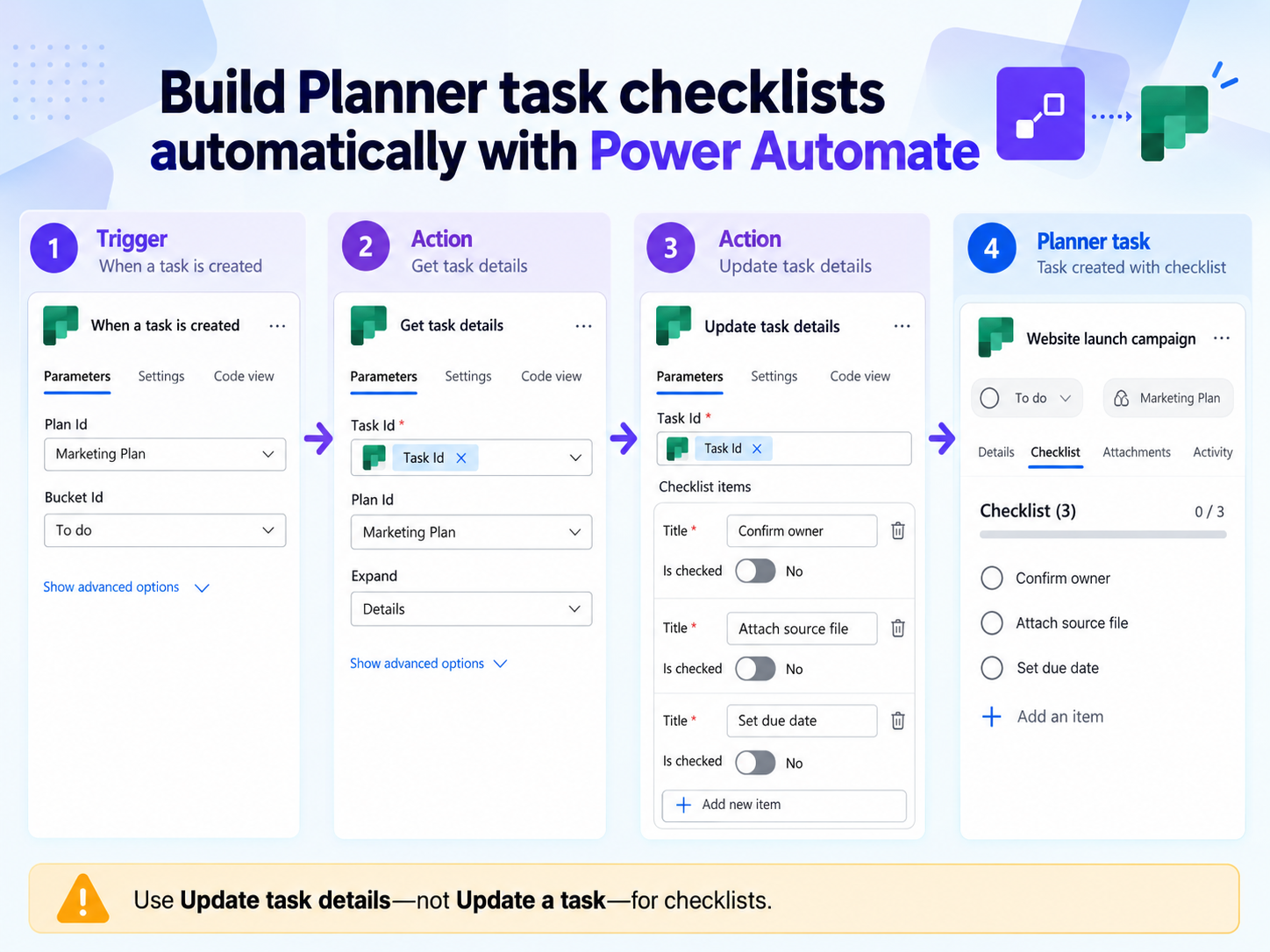
Planner stores a checklist in the task details rather than the basic task record. That is why the Power Automate action named Update a task does not expose checklist rows. The reliable pattern is to identify the task, optionally read its details, and use Update task details with a unique item ID, title, and checked state for each checklist entry.
This walkthrough uses a small standard checklist and verifies the finished task. Build it in a test plan first because a flow triggered by task creation can call itself indirectly through other automations or add duplicate items when it processes the same task twice.
Choose the trigger and capture the task ID
Start with the event that should apply the checklist. A task-created trigger works for a general plan standard; an approval, form response, or list-item trigger is better when the flow also creates the Planner task. In every case, retain the task ID returned by the trigger or Create a task action.
Confirm that the connection can access the Microsoft 365 group and plan. Use the small-task automation pattern to confirm the trigger and connection before mapping the Planner plan, bucket, and task ID. Do not type a task title where the action expects the immutable task ID.
- Select the correct group and plan.
- Store the returned Task Id.
- Define checklist labels in a stable order.
- Decide whether existing items should be preserved.
- Create a test task with no sensitive data.
Add checklist rows with Update task details
Read details when preserving existing content
Add Get task details with the Task Id when the flow may encounter tasks that already contain a description, references, or checklist items. This gives you the current detail object and helps avoid overwriting information that another process owns.
Add the Update task details action
Choose the current, non-deprecated Planner action and pass the same Task Id. In Checklist items, add a row for each standard step. Supply a unique checklist item ID, a clear title, and Is checked set to No for a new task.
Use deterministic IDs for repeatable flows
If the designer accepts item IDs directly, derive stable identifiers for the same template items rather than creating new random values on every retry. A deterministic mapping lets the flow recognize an existing item and reduces duplication. Keep labels concise because Planner cards have limited visual space.
Save without replacing unrelated details
Review every populated field before saving. A connector update can replace a collection instead of merging it. Preserve existing description, references, and checklist content when the business rule says the flow should only append missing standard steps.
Test the flow against a real Planner task
Run the flow once and open the task in Planner. Confirm that the Checklist tab contains each item once, that every new item is unchecked, and that the task remains in the expected plan and bucket. Then run the same test path again. A second run should skip or update the existing checklist rather than doubling it.
When tasks are displayed through Teams, open the board from the intended channel and verify the same checklist. The Teams board verification guide helps confirm that the tab points to the correct plan. A flow can succeed against one plan while the team is looking at another.
Handle templates and conditional checklists
For several task types, keep the checklist template in a SharePoint list, Dataverse table, or controlled array rather than cloning the entire flow. Include a template name, item key, display order, and active flag. The flow can retrieve the appropriate rows and add them to the task in a predictable sequence.
Add conditions before applying a template. For example, use a label, bucket, or source request type to select a launch, onboarding, or review checklist. Log the template version with the task so owners can explain why an older task has different steps. Do not silently rewrite completed checklist items when the template later changes.
Make checklist automation operationally safe
Use a trigger condition or processed marker to prevent loops. Configure failure handling around the details action and send an exception that includes the task ID and plan, not sensitive task content. If many tasks are created together, respect connector throttling and avoid unnecessary read-update cycles.
Assign one owner to the checklist vocabulary. Vague steps such as “Review” create inconsistent outcomes; action-oriented labels such as “Confirm owner” or “Attach signed brief” are easier to verify. Periodically sample completed tasks and remove obsolete template items from future runs while preserving history on existing work.
Document which flow owns each checklist template so another administrator can change it safely. This small ownership note prevents competing flows from writing different versions to the same task.
Planner checklist automation questions
Why do I not see checklist fields in Update a task?
Checklist items belong to task details. Use Update task details, which exposes checklist item ID, title, and checked state. The similarly named basic task action handles fields such as title, dates, progress, and assignees.
Do I need Get task details first?
Use it when you must preserve or inspect existing descriptions, references, or checklist items. A simple new-task flow can update details directly, but reading first makes merge and duplicate logic safer.
How do I stop duplicate checklist items?
Give template items stable keys, read the current task details, and add only missing keys. Also prevent the same trigger event from being processed repeatedly.
Can the flow mark some checklist items complete?
Yes. The checklist row includes an Is checked value. For a newly created task, leave standard work unchecked unless a prior automated step genuinely completed that item.
Verify the checklist on the task, not only in run history
Pass the correct task ID into Update task details, preserve existing detail collections, and use stable checklist keys so retries do not create duplicates. A successful run is complete only when the intended Planner task shows each checklist item once in the right plan.