First identify the Outlook client. Classic Outlook uses the Microsoft Teams Meeting Add-in for Microsoft Office; new Outlook has native Teams meeting capability and does not load that COM add-in. Trying to enable a COM component in new Outlook sends troubleshooting in the wrong direction.
Confirm the symptom in classic Outlook
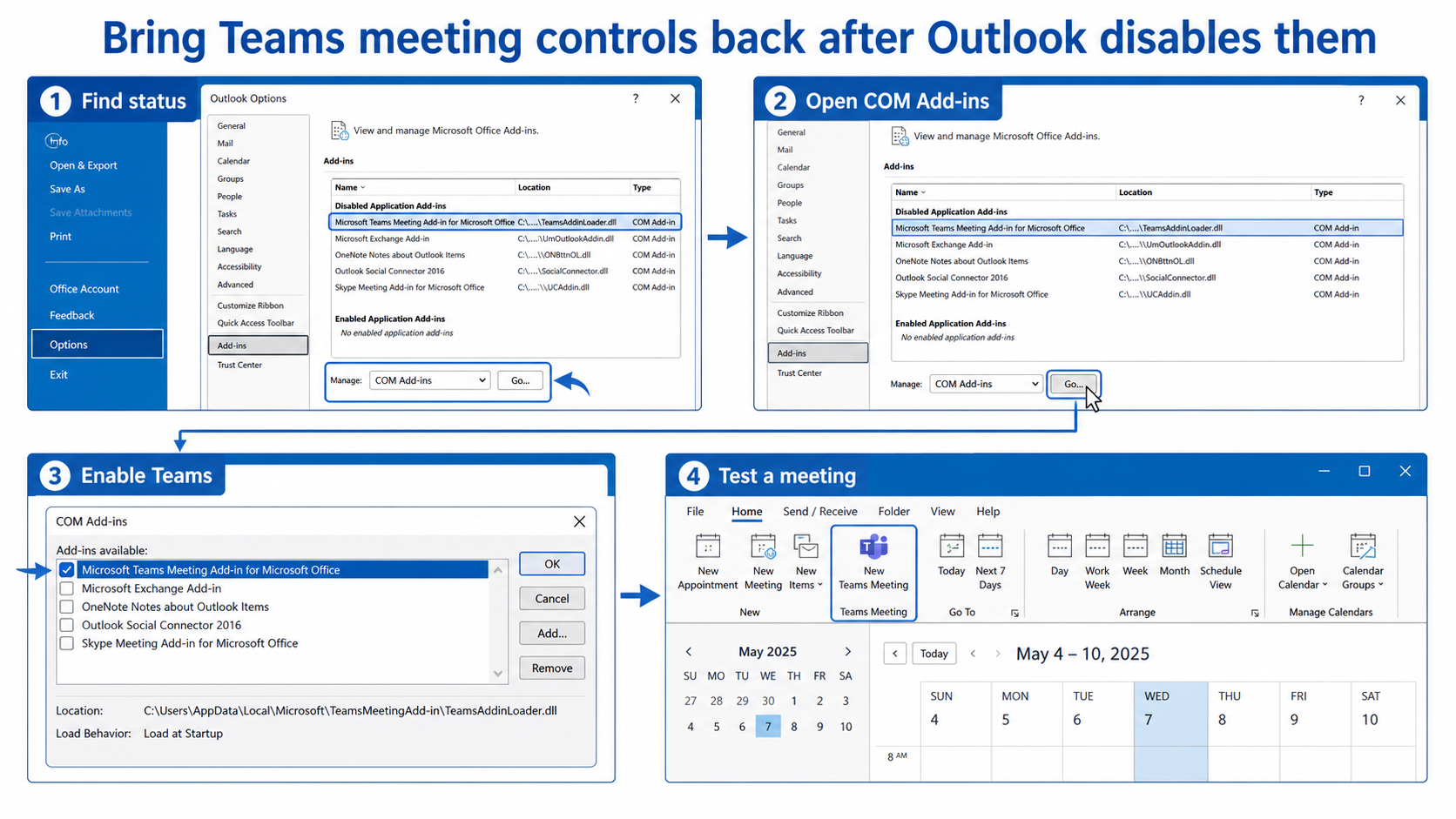
Open File > Options > Add-ins and inspect the lists. If Microsoft Teams Meeting Add-in for Microsoft Office appears under Disabled Application Add-ins, you have a re-enable case. If it is absent everywhere, treat installation, account, and client compatibility as the likely branch.
The account and installation requirements in the account-and-install checks help distinguish a disabled component from a missing or unsupported one.
Avoid destructive cleanup until you know whether the authoritative copy is in the cloud, mailbox, calendar, or local profile. Export or verify important data first. In managed environments, a policy result should be handed to the administrator with exact timestamps and reproduction steps rather than worked around.
Enable it once and restart cleanly
- In Outlook Options, choose Add-ins.
- At Manage, select COM Add-ins and choose Go.
- Select Microsoft Teams Meeting Add-in for Microsoft Office.
- Confirm the dialogs, close Outlook completely, and reopen it.
- Create a test calendar event and look for the Teams meeting command.
Microsoft’s current troubleshooting guidance says the add-in should return to Active Application Add-ins after restart. Avoid registry edits while this standard path still works.
After each change, repeat the smallest test that originally failed. A successful result in a different client narrows the fault but does not automatically repair the original one. Record the boundary, apply the targeted correction, and test again in the user’s normal workflow.
If Outlook disables it again
Check the slow-add-in notice
Outlook can disable add-ins that delay startup or shutdown. Use the Slow and Disabled Add-ins view when present and review the reason before choosing Always enable.
Align Teams and Outlook sessions
Close both apps, start Teams, sign in with the correct work account, and then start Outlook without elevated administrator mode. Apply current updates to both clients.
Know when re-registration belongs to IT
Microsoft documents loader re-registration and registry checks for persistent failures. Those steps require careful bitness and path handling, so hand them to support rather than improvising commands.
A useful test changes one variable at a time. Keep the same account and content while switching only the client, then keep the client and switch only the account or item. This produces evidence you can act on instead of a pile of unrelated resets.
Verify the restored action, not only the checkbox
Create a new appointment from your primary work calendar and add a Teams meeting. Confirm join details populate and reopen the saved event. The normal scheduling workflow provides a useful comparison for what the restored experience should produce.
Avoid destructive cleanup until you know whether the authoritative copy is in the cloud, mailbox, calendar, or local profile. Export or verify important data first. In managed environments, a policy result should be handed to the administrator with exact timestamps and reproduction steps rather than worked around.
Recognize a recovery that only looks complete
Use a harmless calendar item for the final comparison, not the user’s confidential production content. Note the signed-in account, client, approximate time, and exact visible result. Then repeat the same action once from a second supported client. A difference between clients points toward local state or a client-specific experience; the same result everywhere points toward the account, source data, policy, or service.
Keep the test matrix small enough to explain. One row can represent the normal user and original item, a second the same user with a clean test item, and a third an approved comparison account when available. Change only one condition between rows. This discipline matters because simultaneous sign-outs, cache clearing, permission changes, and item recreation can hide the cause and make the next incident harder to diagnose.
Check the owner boundary before applying the result. End users can usually refresh a client, choose a supported item, or correct their own setting. Owners control sharing and source data. Administrators control tenant policy, effective assignments, managed browser rules, licensing, and service-health escalation. Stop at that boundary and provide evidence instead of asking the user to bypass a security decision.
Finally, return to the ordinary workflow and repeat the exact action that failed. Confirm both the immediate screen and the downstream result: the other attendee’s view, the saved calendar item, the mailbox copy, the flow run, the synced browser data, or the participant’s lobby entry. A button appearing is only partial recovery when the expected output is still missing.
Teams add-in troubleshooting FAQ
Why is there no COM add-in in new Outlook?
New Outlook uses built-in Teams meeting functionality and does not support the classic Teams COM add-in. Troubleshoot its native meeting control rather than searching Disabled Items.
Can a personal Outlook.com account use the work add-in?
The classic work add-in depends on supported Exchange-based work or school scenarios and Teams sign-in. A personal account can have a different meeting workflow.
What if the checkbox clears after every restart?
Repeated disablement suggests performance, installation, policy, or loader trouble. Capture the add-in status and Outlook version, then use Microsoft’s deeper administrator troubleshooting rather than repeatedly toggling it.
Keep the recovery scoped
The best result is a repeatable test that identifies the responsible layer and leaves the user’s data and security controls intact. Keep the successful change, undo speculative ones, and share the narrow evidence with the owner of any policy or service dependency. Retest in the normal client before treating the incident as resolved. If the symptom returns, compare it with the recorded boundary before repeating cleanup; recurrence after the same trigger is far more useful than a vague report that the app failed again.