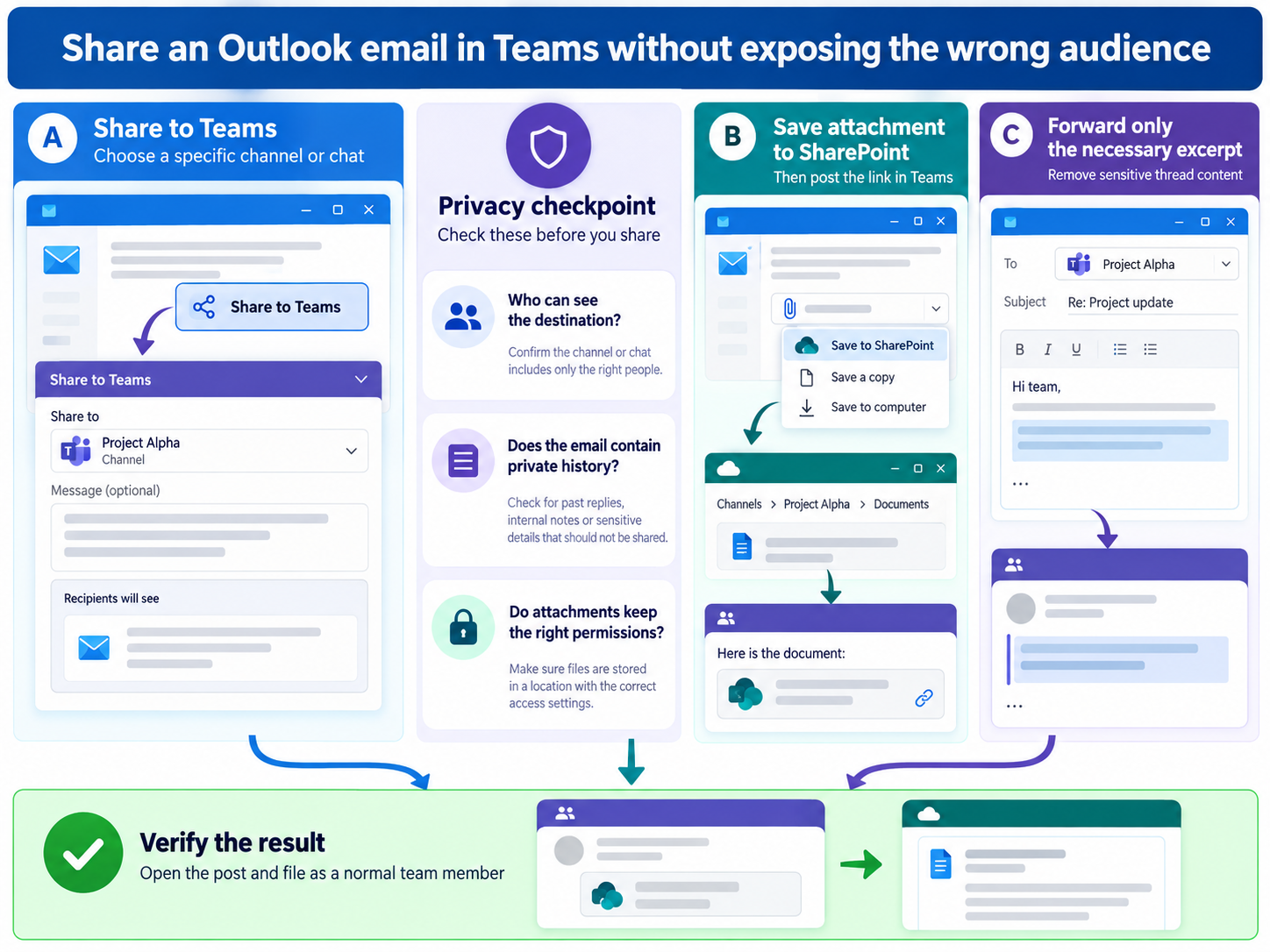
Copying an email into Teams is useful when the conversation has become collaborative work rather than private correspondence. Outlook’s Share to Teams command sends a preview to a chat or channel and can include attachments. It is faster than taking screenshots and preserves a clear path to the message content.
The convenience does not remove the need to choose the audience carefully. A channel may contain people who were not on the original email, and attachments can carry sensitive or outdated copies. Read the message as if you were a new channel member before you share it, then add a short explanation of the decision or action the team needs.
Choose chat or channel based on the work
Use a chat for a small, temporary discussion and a channel when the message supports ongoing team work that should be discoverable. Confirm the exact team and channel name; similarly named destinations are common in larger tenants. If the email contains personal, legal, financial, or customer data, verify that the destination audience is authorized.
A good handoff includes purpose, owner, and next action. Do not drop an unexplained email preview into a busy channel. If the outcome should become a tracked task rather than a conversation, the mail-to-task approach may be the better destination.
- Who needs the information?
- Does the full thread need to be visible?
- Are attachments necessary and current?
- Should the outcome be a discussion, file, or task?
Use Share to Teams in your Outlook client
New or classic Outlook for Windows
Open the message in the reading pane or its own window. On the Home tab or ribbon, select Share to Teams. Search for the person, group, or channel, add a short message, decide whether to include attachments, and select Share.
Outlook on the web
Open the message, select Apps, and choose Share to Teams. Pick the destination, add context, and review the attachment option. If the command is not visible, the account, subscription, organization policy, or current client may not support it.
Confirm the Teams result
Open the destination and verify that the email preview appears in the intended conversation. Use More options or open the preview to inspect the full content. Ask a colleague to open a critical attachment when access matters; your own successful test is not enough.
Handle attachments and cloud links deliberately
Microsoft’s current support guidance says attachments can be included, while cloud documents may surface permission warnings. An attachment becomes a copy for the Teams audience; a cloud link may continue to depend on its original sharing settings. Choose the behavior that matches the collaboration goal rather than assuming both are equivalent.
If the Teams post should point to one maintained document, place that document in the proper team library and share the channel file. The cross-app file sharing notes help when the durable file matters more than the email preview. Avoid circulating multiple attachments that colleagues may edit independently.
When the button is missing or the share fails
Share to Teams requires an eligible work or school Microsoft 365 account. Microsoft also documents client limitations, including unsupported mobile use and restrictions involving shared mailboxes. Test in Outlook on the web and confirm that the Teams desktop app and signed-in account belong to the expected organization.
A manual forward to a channel email address is not an identical fallback and may be disabled by policy. If the feature is blocked, summarize the relevant facts in Teams and share an approved file link instead. Do not bypass a security control by copying sensitive content into a broader destination.
Choose the right Teams destination for the message
Use a channel when the email supports shared project work and should remain discoverable. Use a chat when the context is temporary or limited to a few people. If the email contains confidential recipients, signatures, tracking links, or attachments, remove unnecessary details before sharing and confirm that every recipient is allowed to see the content.
A screenshot is quick but hard to search and cannot preserve accessible text. Pasting the useful excerpt with a short explanation is usually better, while a saved message file may be appropriate when headers or formatting matter. Whichever method you choose, open the Teams copy as a normal member and confirm that attachments and links do not depend on your private mailbox permissions.
Quick answers for email handoffs
Can I share the email with its attachments?
Yes, supported Outlook clients let you include attachments when using Share to Teams. Review the checkbox and the destination before sending. For cloud documents, follow any permission warning and test the link as a destination member.
Why does Share to Teams not appear in Outlook?
The feature depends on a qualifying work or school Microsoft 365 account, the Outlook client, Teams availability, and organizational policy. Microsoft notes that it is not supported on mobile and that shared mailboxes have limitations. Try Outlook on the web with the same account before escalating.
Does the Teams post stay linked to future email replies?
No. The shared item is a copy or preview of the email at the time of sharing, not a live synchronized email thread. New replies in Outlook do not automatically extend the Teams conversation.
Can everyone in the channel now see the email?
People who can access the destination conversation can see what was shared there, subject to service and file permissions. That audience may be broader than the email recipients. Review confidential text and attachments before selecting a channel.
Share the decision, not just the message
Share to Teams works best when the email becomes useful team context with a named next step. Pick the narrowest suitable audience, remove unnecessary attachments, and verify the result in Teams. If ongoing work centers on a document or task, move that object into its durable team location instead of letting an email preview become the unofficial system of record.