An all-day item uses date boundaries rather than a visible start hour. It can therefore look like a two-day event when the saved end date is the following day, a time-zone conversion exposes midnight differently, or an old calendar copy has not refreshed. Fix the stored item first; changing the calendar view only hides the symptom.
Inspect the event as data, not as a colored bar
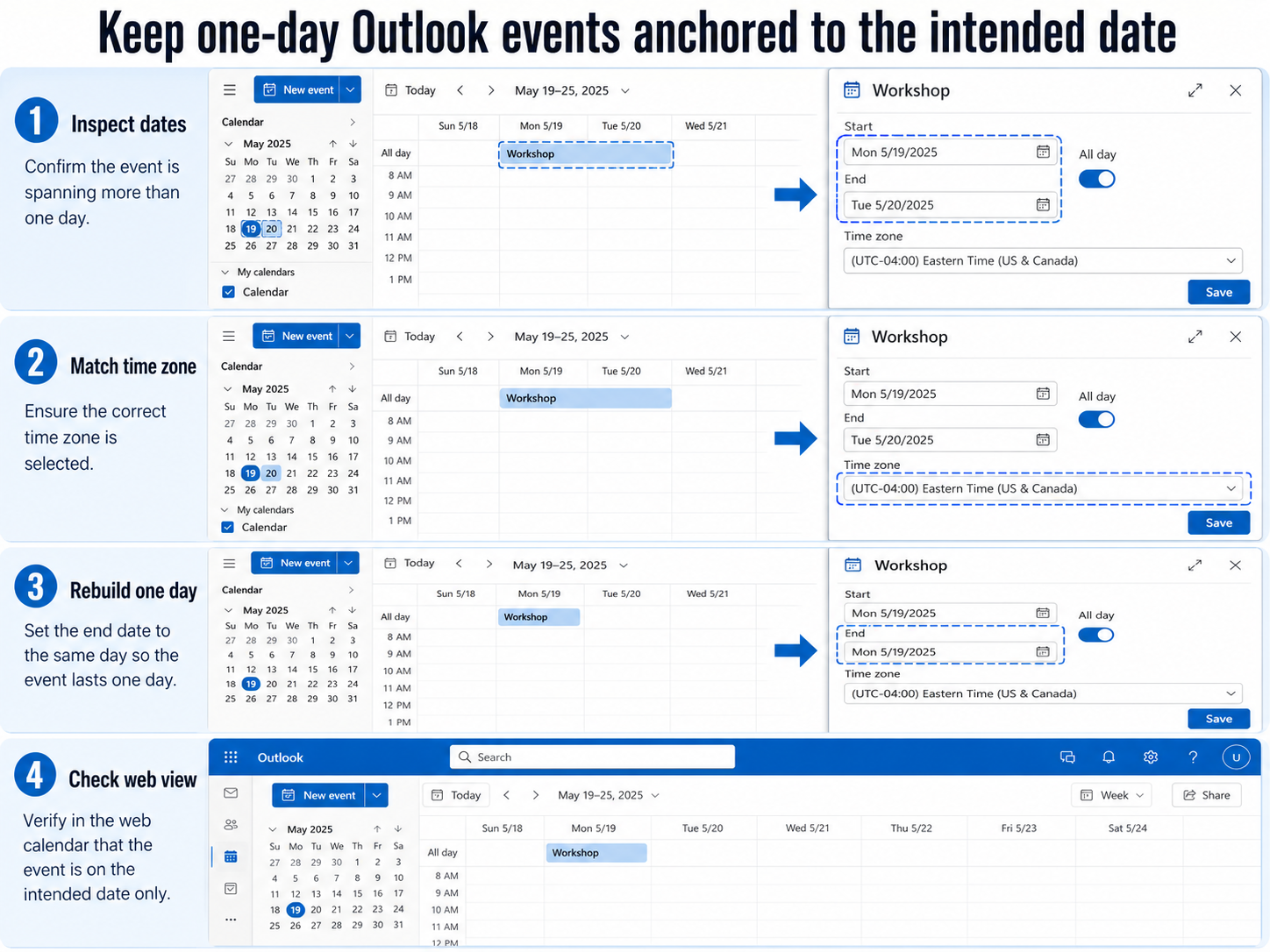
Open the event and write down the start date, end date, All day setting, recurrence, calendar name, and time zone. A one-day event should display one intended date in the editor. If the editor shows an explicit following-day end, correct it there instead of dragging the block in week view.
Microsoft confirms that all-day events can legitimately span multiple days. That means Outlook is not always malfunctioning: it may be rendering the range it was given.
A useful test changes one variable at a time. Keep the same account and content while switching only the client, then keep the client and switch only the account or item. This produces evidence you can act on instead of a pile of unrelated resets.
Rebuild a single-date copy
Create a new appointment on the intended date, enable All day, copy only the subject and essential notes, and save it before adding attendees. Compare the new item with the original. If the replacement occupies one date, cancel or delete the faulty copy carefully so recipients are not left with two events.
For vacation notices, the vacation-calendar method helps distinguish a personal out-of-office block from an invitation that should remain free on coworkers’ calendars.
Avoid destructive cleanup until you know whether the authoritative copy is in the cloud, mailbox, calendar, or local profile. Export or verify important data first. In managed environments, a policy result should be handed to the administrator with exact timestamps and reproduction steps rather than worked around.
Resolve time-zone disagreements
Compare Outlook and operating-system zones
Outlook stores timed calendar data against time-zone information. Confirm the primary Outlook zone matches the zone you intend to use, and check the computer zone before editing the event.
Test the web view
Open the same calendar in Outlook on the web. If the date is correct there but wrong in one desktop client, the event data is probably intact and the local view or cache needs attention. Work through the calendar refresh checks before recreating every item.
Treat travel separately
Do not convert an all-day birthday or holiday into a midnight-to-midnight timed meeting just to force one display. Attendees in other zones may then see it shifted.
After each change, repeat the smallest test that originally failed. A successful result in a different client narrows the fault but does not automatically repair the original one. Record the boundary, apply the targeted correction, and test again in the user’s normal workflow.
Recurring events need one more decision
Determine whether the wrong date affects one occurrence or the whole series. Edit only this event when the exception is isolated; edit the series when every occurrence carries the same bad boundary. Review the resulting dates before sending because a recurrence update can touch many calendars at once.
A useful test changes one variable at a time. Keep the same account and content while switching only the client, then keep the client and switch only the account or item. This produces evidence you can act on instead of a pile of unrelated resets.
Compare organizer, attendee, and imported copies
Use a harmless calendar item for the final comparison, not the user’s confidential production content. Note the signed-in account, client, approximate time, and exact visible result. Then repeat the same action once from a second supported client. A difference between clients points toward local state or a client-specific experience; the same result everywhere points toward the account, source data, policy, or service.
Keep the test matrix small enough to explain. One row can represent the normal user and original item, a second the same user with a clean test item, and a third an approved comparison account when available. Change only one condition between rows. This discipline matters because simultaneous sign-outs, cache clearing, permission changes, and item recreation can hide the cause and make the next incident harder to diagnose.
Check the owner boundary before applying the result. End users can usually refresh a client, choose a supported item, or correct their own setting. Owners control sharing and source data. Administrators control tenant policy, effective assignments, managed browser rules, licensing, and service-health escalation. Stop at that boundary and provide evidence instead of asking the user to bypass a security decision.
Finally, return to the ordinary workflow and repeat the exact action that failed. Confirm both the immediate screen and the downstream result: the other attendee’s view, the saved calendar item, the mailbox copy, the flow run, the synced browser data, or the participant’s lobby entry. A button appearing is only partial recovery when the expected output is still missing.
Questions about all-day dates
Why does Outlook use the next day as an end boundary?
Calendar systems often represent an all-day range with an exclusive end boundary at the start of the next date. The Outlook editor should still present a usable date-oriented experience, but imports and connectors may expose that boundary incorrectly.
Should an all-day event show me as busy?
Not necessarily. Microsoft notes that all-day events are commonly shown as Free by default. Choose Busy or Out of Office deliberately when the item should affect availability.
Can I fix only my copy of an invited event?
You can sometimes change how your copy appears, but organizer updates may overwrite local edits. If the invitation itself carries the wrong range, ask the organizer to correct and resend it.
Make the date boundary explicit
The best result is a repeatable test that identifies the responsible layer and leaves the user’s data and security controls intact. Keep the successful change, undo speculative ones, and share the narrow evidence with the owner of any policy or service dependency. Retest in the normal client before treating the incident as resolved. If the symptom returns, compare it with the recorded boundary before repeating cleanup; recurrence after the same trigger is far more useful than a vague report that the app failed again.