Moving a shared folder into OneDrive is not only a copy operation. The source may depend on inherited file-server permissions, mapped-drive paths, desktop shortcuts, and applications that expect a network location. OneDrive uses Microsoft 365 identities and sharing, so access must be designed and tested at the destination.
For an individual or small controlled folder, a manual copy may be enough. For a managed file share, Microsoft provides Migration Manager and the SharePoint Migration Tool. The right method depends on volume, ownership, required reporting, and whether the content belongs in a person’s OneDrive or a team-owned SharePoint library.
Decide whether OneDrive is the right destination
OneDrive is designed around an individual’s work files and sharing. A department folder that must outlive one employee is usually better placed in a SharePoint team site or the library behind a Teams channel. Choose ownership before migration; moving the same data twice creates avoidable links and sync churn.
Inventory file count, total size, path length, unsupported names, owners, stale content, and existing access groups. The storage-location comparison helps when the real choice is between personal OneDrive and team-owned SharePoint rather than simply cloud versus server.
- Name the business owner and destination owner.
- Separate personal work from team records.
- Map source groups to Microsoft 365 identities.
- Identify applications that use fixed paths.
- Set a source freeze and rollback window.
Pilot the migration with representative content
Prepare the destination
Provision the destination OneDrive or SharePoint library, create the top-level folder structure, and set baseline permissions. Avoid deeply nested folders that reproduce every historical quirk. Confirm storage, retention, sensitivity, and external-sharing policies before content arrives.
Choose the transfer method
Use Migration Manager for centrally managed file-share migrations and its reporting, or the SharePoint Migration Tool for an appropriate admin-led transfer. A small user-owned set can be copied through the sync client, but large drag-and-drop jobs provide less governance and weaker reporting.
Run a pilot copy
Select content that includes ordinary Office files, large files, nested folders, unusual names, and restricted material. Migration tools copy content while the source remains available, which supports comparison. Review warnings rather than counting only successful files.
Rebuild and test access
File-server permissions do not automatically become a trustworthy OneDrive sharing model. Apply destination permissions to folders with clear ownership, then test view and edit actions with representative users. Remove temporary pilot access after validation.
Cut over without creating two active sources
Schedule the final pass after users stop changing the source. Communicate the exact cutoff, new link, and owner. Preserve the source as read-only for an agreed period when policy allows, so unresolved discrepancies can be checked without inviting new edits.
Have users open several files, create a test document, and confirm that synchronization completes. The sync health checks are useful when files appear online but not in File Explorer. Distinguish a migration omission from a local sync-client problem.
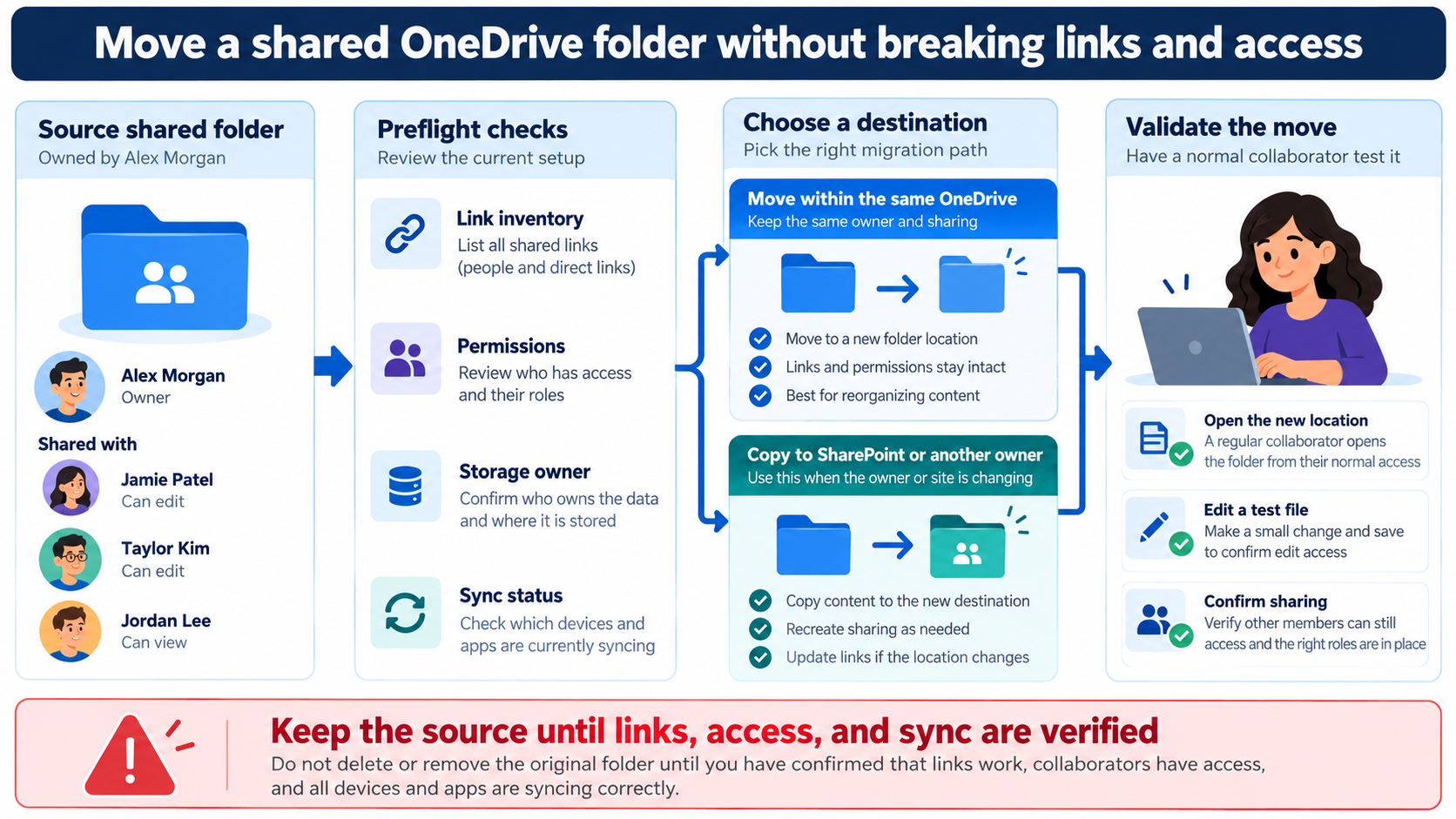
Watch permissions and shortcuts after the move
Microsoft warns that moving shared items can change permissions because items may inherit from the destination. A shortcut to a shared folder is not the same as transferring ownership. Validate access from the destination’s Manage access view and remove old broad links that no longer match the business need.
Monitor help requests, sync errors, rejected files, and broken application paths through the stabilization period. Close the migration only after the owner signs off on counts, critical files, access, and retention. A successful copy with an unusable permission model is not a successful migration.
Plan the cutover around sync and ownership
Map the source folder’s owners, editors, viewers, external guests, and important shared links before copying data. OneDrive can recreate file access, but it does not automatically reproduce every permission decision or link that existed on a file server or another cloud service. Decide whether the destination belongs in one person’s OneDrive or in a team-owned SharePoint library; long-lived departmental content is usually safer in the latter.
Choose a quiet cutover window and ask users to stop editing the source. Copy a representative sample first, checking long paths, unsupported characters, large files, and application-specific formats. After the full transfer, compare file counts and total size, then open several high-value documents from a normal user account rather than relying only on the sync client’s completion icon.
Keep the original read-only for an agreed validation period. Update shortcuts and documented paths only after owners accept the destination, and do not delete the source merely because the initial copy finished. Retention, backup, and records obligations may require a longer overlap or a centrally managed migration tool.
Shared-folder migration FAQ
Should a department share go to one employee's OneDrive?
Usually not when the department needs durable ownership. A SharePoint library or Teams-backed library is generally a better team destination. Use OneDrive for content whose accountable owner is genuinely the individual.
Do source permissions migrate automatically?
Do not assume they do. Migration methods and settings differ, and destination items may inherit destination-folder permissions. Map identities, configure sharing deliberately, and test with representative users before cutover.
Can users keep the mapped drive while they transition?
They can during a controlled coexistence window, but allowing edits in both places creates divergence. Set a clear freeze or make the source read-only at cutover. Publish one authoritative destination link.
What should I do with shared-folder shortcuts?
Treat shortcuts as navigation aids, not ownership or migration. Update or remove old shortcuts after the destination is validated. Test that users can reach the new location from the web and sync client without relying on stale mapped paths.
Close the migration with evidence
Finish only when file counts and critical samples reconcile, destination permissions work for normal users, sync is healthy, and the source has a controlled disposition. OneDrive can simplify access, but only when ownership is appropriate. For team-owned records, choosing SharePoint at the start is often the most important migration decision.