Restore windows 11 taskbar icons when they disappear
Have you ever opened your Windows 11 computer only to find that your taskbar icons have mysteriously vanished? This frustrating issue affects countless users who rely on quick access to their favorite applications through the taskbar. Whether you’re trying to launch Microsoft Teams for a morning meeting, access your Office 365 applications, or simply open File Explorer, missing taskbar icons can significantly disrupt your workflow and productivity.
Windows 11 taskbar icons not showing
When taskbar icons disappear in Windows 11, it creates more than just visual confusion. This problem directly impacts business productivity as users lose quick access to essential applications like Microsoft Teams, Outlook, and other Office 365 tools. The issue often stems from Windows Explorer process crashes, corrupted user profiles, or system updates that reset taskbar configurations.Understanding why icons vanish helps prevent future occurrences and maintains seamless access to your Microsoft 365 ecosystem. If only the Copilot button is absent, use the focused steps for restoring Copilot on the Windows taskbar rather than rebuilding every icon.
Windows 11 taskbar icons showing blank
We will demonstrates how to restore missing taskbar icons using Windows 11’s built-in recovery methods and registry adjustments. We’ll cover immediate fixes through Windows Explorer restart, permanent solutions via registry modifications, and preventive measures to avoid future icon disappearance. The solution assumes you have administrative access to your Windows 11 system and basic familiarity with Windows settings navigation.
Fix taskbar icons Windows 11
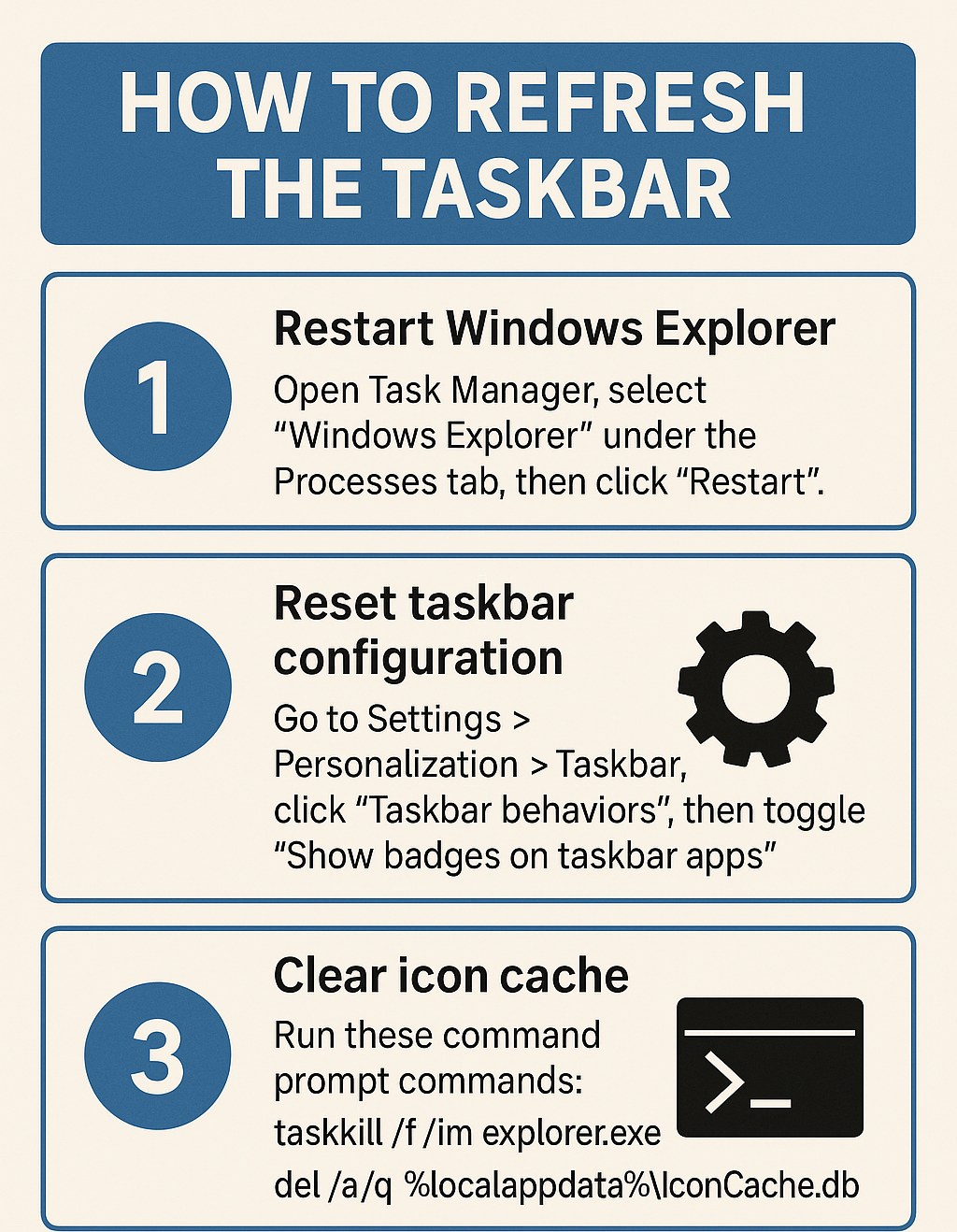
- Restart Windows Explorer process by opening Task Manager using Ctrl+Shift+Esc, locating “Windows Explorer” under the Processes tab, right-clicking it, and selecting “Restart” to refresh the entire taskbar interface immediately.
- Reset taskbar configuration by navigating to Settings > Personalization > Taskbar, clicking “Taskbar behaviors,” and toggling off then on the “Show badges on taskbar apps” option to force a taskbar refresh. For additional taskbar customization options, you can also learn how to pin folders to the Windows taskbar for quick access to your most-used locations.
- Clear icon cache by opening Command Prompt as administrator, typing
taskkill /f /im explorer.exeto stop Explorer, thendel /a /q "%localappdata%\IconCache.db"to delete the corrupted cache file. - Restart Explorer process by typing
start explorer.exein the same Command Prompt window to reload the taskbar with fresh icon data and restore missing application shortcuts. - Modify registry settings by pressing Win+R, typing
regedit, navigating toHKEY_CURRENT_USER\Software\Microsoft\Windows\CurrentVersion\Explorer\Advanced, and creating a new DWORD value named “EnableXamlStartMenu” with value 0. - Reset user profile taskbar by creating a new local user account through Settings > Accounts > Family & other users, signing into the new account to verify taskbar functionality, then transferring your data if the original profile remains corrupted.
- Update Windows system by accessing Settings > Windows Update, clicking “Check for updates,” and installing any available updates that might contain taskbar-related fixes from Microsoft’s development team.
- Rebuild taskbar database by opening PowerShell as administrator and running
Get-AppXPackage -AllUsers | Foreach {Add-AppxPackage -DisableDevelopmentMode -Register "$($_.InstallLocation)\AppXManifest.xml"}to refresh all application registrations.
Separate a hidden taskbar app from a damaged icon
A dependable taskbar recovery result comes from isolating the exact surface involved before changing broad settings. Record the current account, device, version, and symptom, then use a harmless control test so each change can be reversed.
Isolate the affected layer
Check whether the application is running, pinned, or merely hidden in the overflow area. Unpin and repin one affected app from its verified executable or Start menu entry; an old shortcut can point to a removed version.
Restart Windows Explorer through Task Manager and sign out once before clearing caches. If all icons vanish after an update, install pending Windows fixes and test a new user profile to distinguish system state from profile-specific corruption.
Confirm the result safely
Document whether labels, click targets, and hover previews still work. That evidence distinguishes a rendering problem from a missing shortcut and avoids deleting broad icon caches unnecessarily.
On a managed device, an unavailable or reverting control may be enforced by policy. Do not bypass it locally; capture non-sensitive screenshots and version details for the responsible administrator.
When escalation is needed, provide the smallest reproducible case and the changes already attempted. That evidence shortens diagnosis and reduces the chance of an unnecessary reset.
Use a before-and-after checklist that covers the primary task, sign-in state, permissions, notifications, synchronization, and any dependent workflow. A fix is incomplete if the original symptom disappears but another required function silently stops. For shared systems, ask one intended user to repeat the same test without granting broader access.
Keep temporary workarounds clearly labeled and time-limited. Review them after the supported fix is deployed, remove permissions or overrides that are no longer needed, and confirm the standard workflow still succeeds.
Finally, keep the tested account and sample available until the next normal work cycle. Confirm that automatic updates, synchronization, and scheduled processes do not reverse the result, then remove any diagnostic-only files or permissions.
Icons missing in taskbar troubleshooting common issues
- Windows Explorer crashes repeatedly often indicate deeper system corruption requiring a System File Checker scan using
sfc /scannowin Command Prompt, followed byDISM /Online /Cleanup-Image /RestoreHealthto repair Windows image files that support taskbar functionality. - Registry modifications don’t persist typically occur when Windows updates override custom settings, requiring you to create a backup of working registry values and reapply them after major system updates using Registry Editor’s export and import functions.
- New user accounts show same problems suggest system-wide corruption requiring Windows 11 reset through Settings > System > Recovery > Reset this PC while choosing “Keep my files” to preserve data while rebuilding the operating system foundation that supports taskbar operations.
Suggestion: Create a system restore point before making registry changes, and consider using Group Policy Editor in Windows 11 Pro to prevent future taskbar modifications through organizational settings.