Understanding why files not loading on Teams occurs
Have you ever clicked on a file in Microsoft Teams only to see an endless loading screen or an error message? This frustrating scenario happens more often than you’d expect, especially when your team is rushing to meet a deadline. Whether it’s a critical presentation that won’t preview, a shared document that displays as corrupted, or compressed files that refuse to extract, file access issues can bring collaboration to a grinding halt and impact productivity across your organization.
Common causes behind teams unable to open files
File access problems often stem from corrupted cache data or incorrect settings. If you’re experiencing issues with Teams notifications alongside file problems, you may want to first check your Teams notifications settings to ensure proper system configuration.
Browser compatibility issues, insufficient permissions, or corrupted file uploads can prevent documents from loading properly. Additionally, network connectivity problems, outdated Teams clients, or conflicts with third-party security software often contribute to these challenges. Understanding these root causes helps organizations implement targeted solutions that restore seamless file sharing and collaboration capabilities across their Teams environment.
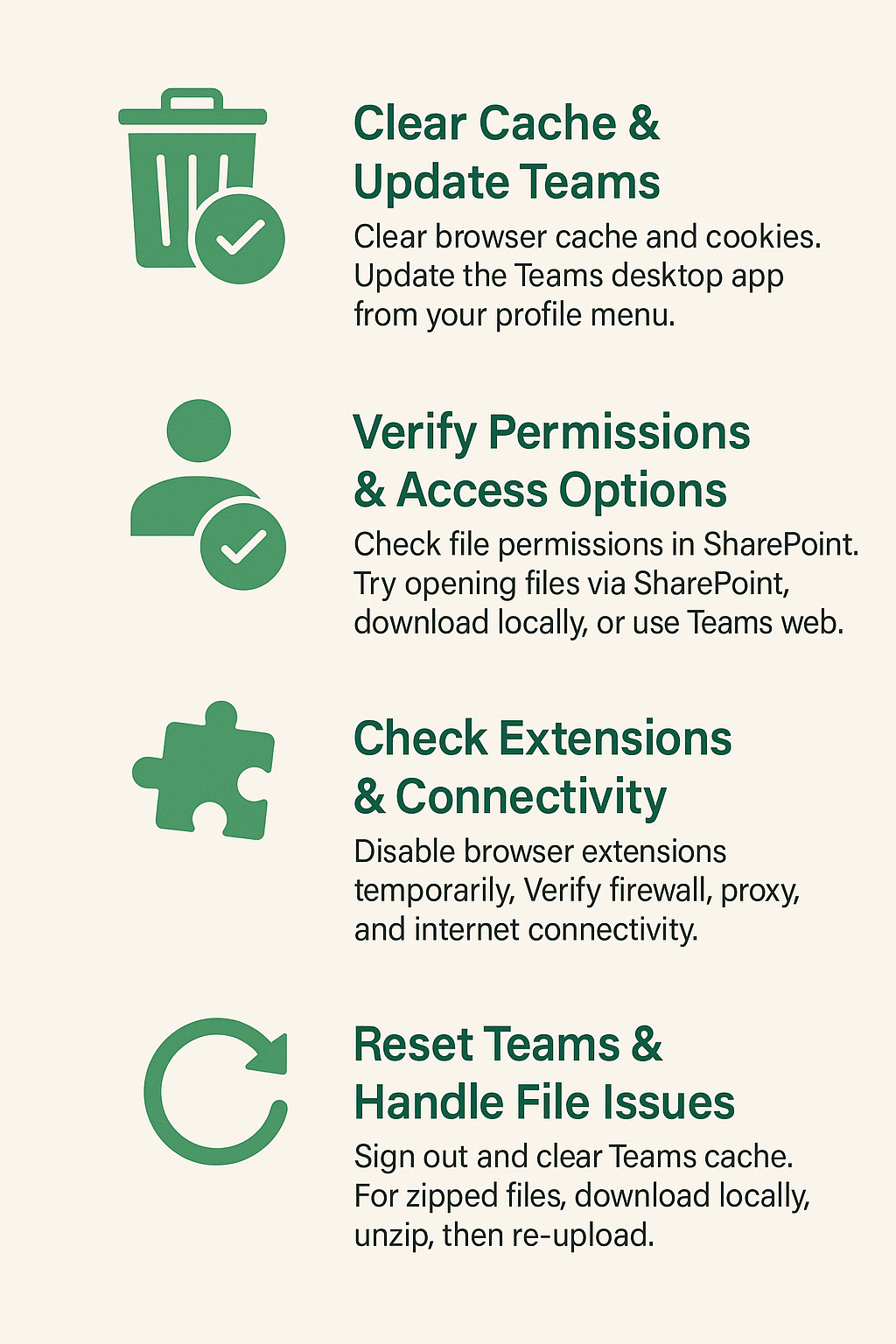
Essential steps to fix Microsoft Teams files not loading
- Clear your browser cache and cookies by accessing browser settings, navigating to privacy or history sections, and selecting options to clear browsing data for the past 24 hours or all time depending on issue severity.
- Update your Teams desktop application by clicking your profile picture in the top-right corner, selecting “Check for updates,” and allowing the application to download and install any available updates automatically.
- Verify file permissions in SharePoint by navigating to the associated SharePoint site, locating the problematic file, right-clicking to access sharing settings, and confirming that appropriate users have read or edit permissions.
- Try accessing files through alternative methods such as opening the file directly in SharePoint, downloading the file to your local device, or using the web version of Teams instead of the desktop application.
- Disable browser extensions temporarily by accessing your browser’s extension management page, disabling all extensions, restarting the browser, and testing file access to identify potential conflicts with Teams functionality.
- Check network connectivity and firewall settings by ensuring your organization’s firewall allows Teams traffic, testing internet connection stability, and verifying that proxy settings aren’t interfering with file downloads or previews.
- Reset Teams application data by completely signing out of Teams, clearing the application cache from your system’s temporary files folder, and signing back in to refresh all cached data and settings.
- Handle Microsoft teams unzip files issues by downloading compressed files to your local device first, extracting them using your operating system’s built-in tools, and then re-uploading individual files to Teams channels or SharePoint locations.
- Finally – When files won’t open, try accessing them through SharePoint directly. You can also sync Teams folders to your computer for local access, which often resolves preview and opening issues while providing offline availability.
Tip: Keep a backup of important files in multiple locations to ensure business continuity when Teams experiences temporary file access issues.
Resolving persistent files not showing on teams problems
- Teams cache corruption preventing file display can occur when temporary data becomes corrupted, causing files to appear missing or inaccessible even though they exist in SharePoint, requiring cache clearing and application restart to restore visibility.
- Permission inheritance issues from SharePoint may prevent files from appearing in Teams channels when parent folder permissions are modified, necessitating manual permission verification and adjustment through SharePoint’s advanced sharing settings interface.
- Browser compatibility conflicts with file preview can cause certain file types to fail loading in specific browsers, particularly older versions of Internet Explorer or browsers with strict security settings that block Teams’ preview functionality completely.
Open the backing file before reinstalling Teams
When Teams will not open a file, the fastest diagnostic is to follow that file to SharePoint or OneDrive. Channel files live in SharePoint; chat files are generally stored in the sender’s OneDrive. If the backing URL also fails in a private browser session, reinstalling Teams will not repair ownership, sharing, retention, or file corruption.
Use a file-specific test path
- Identify whether the file came from a standard, private, or shared channel, a chat, or a meeting.
- Open the Shared tab and choose Open in SharePoint or Open in OneDrive, then locate the exact file.
- Copy the link and test it in an InPrivate window while signed into only the intended work account.
- Use Open in browser to separate Office desktop application problems from cloud access problems.
- Test another harmless file in the same location and the original file from another authorized account.
Troubleshooting and safeguards
If every file in one library fails, investigate site permission, conditional access, required metadata, checkout, or service health. If only one file fails, download a copy when permitted, validate its extension and size, and ask the owner to open it. Renames, deleted originals, broken sharing links, and unsupported characters can cause different symptoms. Avoid creating replacement duplicates before preserving version history and links.
Verify the result
After correcting the underlying issue, open the file from Teams, edit only if authorized, save, and confirm the modified time in SharePoint or OneDrive. Test with a normal member rather than an owner. If desktop opening still fails but browser opening works, repair the Office application association or use the Teams file-opening preference before reinstalling Teams.
Before escalating, preserve screenshots, exact error text, timestamps, account type, client version, and the last successful action. Reproduce the problem once with a normal user account and record what changed, because precise evidence helps support teams avoid repeating broad resets and focus on the correct service, permission, policy, or device layer.