When a shared workbook contains an unexpected number, formula, or status, Excel’s Show Changes pane can identify the editor, time, location, old value, and new value. The fastest route is to select the cell and open its change history instead of scanning every recent workbook edit.
This feature is strongest when everyone works in a current coauthoring-capable Excel app and the workbook remains in OneDrive or SharePoint. It is not a permanent forensic archive, so use Version History when the edit is older or the Changes pane is incomplete.
Start with the cell, not the whole workbook
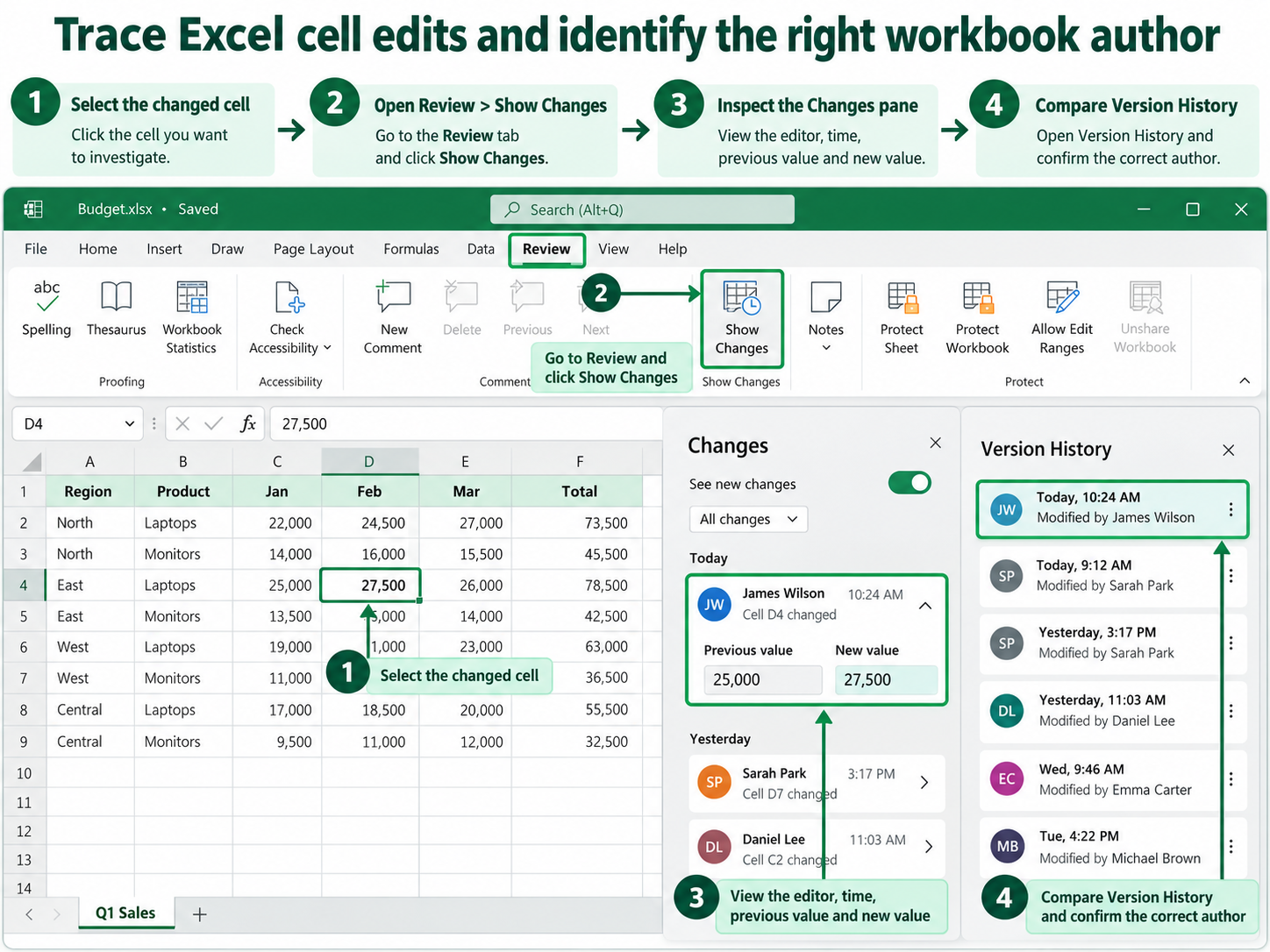
Select the suspicious cell, range, or worksheet. Right-click the selection and choose Show Changes. You can also open Review > Show Changes, then use the filter at the top of the pane to specify a range or sheet.
The newest entries appear first. Each card identifies who made the edit, where it occurred, when it happened, and what changed. For a value edit, the previous value is normally available for comparison. A bulk operation can appear as one card; select See changes on that card to expand its individual edits.
Read the result in context
Do not stop at the editor’s name. Compare the timestamp with the team’s work schedule and check whether the cell was part of a pasted range, formula fill, sort, or automation. A person may be listed because they initiated a legitimate bulk action that affected many cells.
If the workbook has widespread differences, a broader workbook comparison may be more efficient than investigating isolated cells one by one.
Refresh an open Changes pane
If someone edits while the pane is open, Excel may show a See New Changes control. Select it before concluding that no new edit exists. Also verify that you are viewing the correct sheet and that the range filter is not excluding the cell.
Decide whether Show Changes is enough
Microsoft says Show Changes can display edits from the past 365 days. It tracks changes made in supported Excel apps across Windows, Mac, web, iPad, iPhone, and Android. That broad coverage does not mean every historical action will always appear.
The pane can be incomplete when someone used an older or unsupported Excel version, replaced the file, saved a separate copy, or used a feature that is not fully tracked. Some code-based edits, including certain VBA or add-in changes, may not show the previous value.
Use this decision path:
- If the edit is recent and the workbook is coauthored, filter Show Changes to the cell.
- If the change is older, review Version History for the approximate date.
- If the pane is empty, confirm that collaborators used a supported Excel app and the same cloud file.
- If the workbook was replaced or copied, investigate the file history in OneDrive or SharePoint instead of relying on the current pane.
Maintaining the shared editing foundation matters because separate attachments and local copies break the continuous history that makes this investigation useful.
When the workbook supports an important process, agree on a simple escalation rule before an incident. A normal correction can be handled by the workbook owner, while an unexplained bulk edit, recurring overwrite, or missing history should go to the Microsoft 365 administrator. That boundary keeps the team from repeatedly changing evidence while someone is still trying to reconstruct what happened.
Use Version History as the fallback
Open File > Info > Version History in the desktop app, or select the file name and open Version History in a supported Microsoft 365 experience. Choose a version from before and after the suspected change and inspect the workbook without immediately restoring it.
Version History is better for reconstructing a broader state at a point in time. Show Changes is better for answering the narrow question, “Who changed this cell?” Restoring a version changes the current file, so compare first and save a copy when the later edits still matter.
Preserve evidence before correcting the value
Record the cell reference, editor, timestamp, previous value, and current value before you make a correction. For a business-critical incident, export or capture the relevant evidence according to your organization’s policy. Avoid accusing an editor based on a single card until you understand whether a macro, import, or bulk operation was involved.
Common questions about Excel cell history
How far back does Show Changes go?
Microsoft documents a window of up to 365 days for the Changes pane. Your usable history can be shorter if the file was replaced, copied, or edited with unsupported software. Use Version History when you need to inspect older saved states.
Why does the Changes pane show no previous value?
Some edits made through VBA, add-ins, or older Excel versions may not include the prior value. The action can also be part of a bulk change that needs expansion. Compare nearby saved versions if the card does not provide enough detail.
Can I see who only viewed a cell?
No. Show Changes is about edits, not a per-cell viewing audit. It can identify an editor for tracked changes, but it does not report everyone who opened or looked at a worksheet.
Does restoring a version remove later work?
Restoring makes the selected historical version current, so later changes can effectively be rolled back. Preview the version first and consider saving a separate copy. That lets you recover the needed value without discarding unrelated work made afterward.
The investigation result you should keep
A useful result contains more than a name. It states the exact cell or range, the before-and-after values, the displayed time, the editor, and whether the change was individual or part of a bulk action. If Show Changes cannot supply that evidence, switch to Version History and document the limitation rather than guessing.