Edge does not offer a simple user-facing switch that locks a profile like a vault. When a profile will not load, the usual issue is sign-in, sync, policy, or damaged local profile state. Protect synced favorites and passwords by diagnosing the boundary before deleting folders or resetting the browser.
Separate a browser launch problem from a profile problem
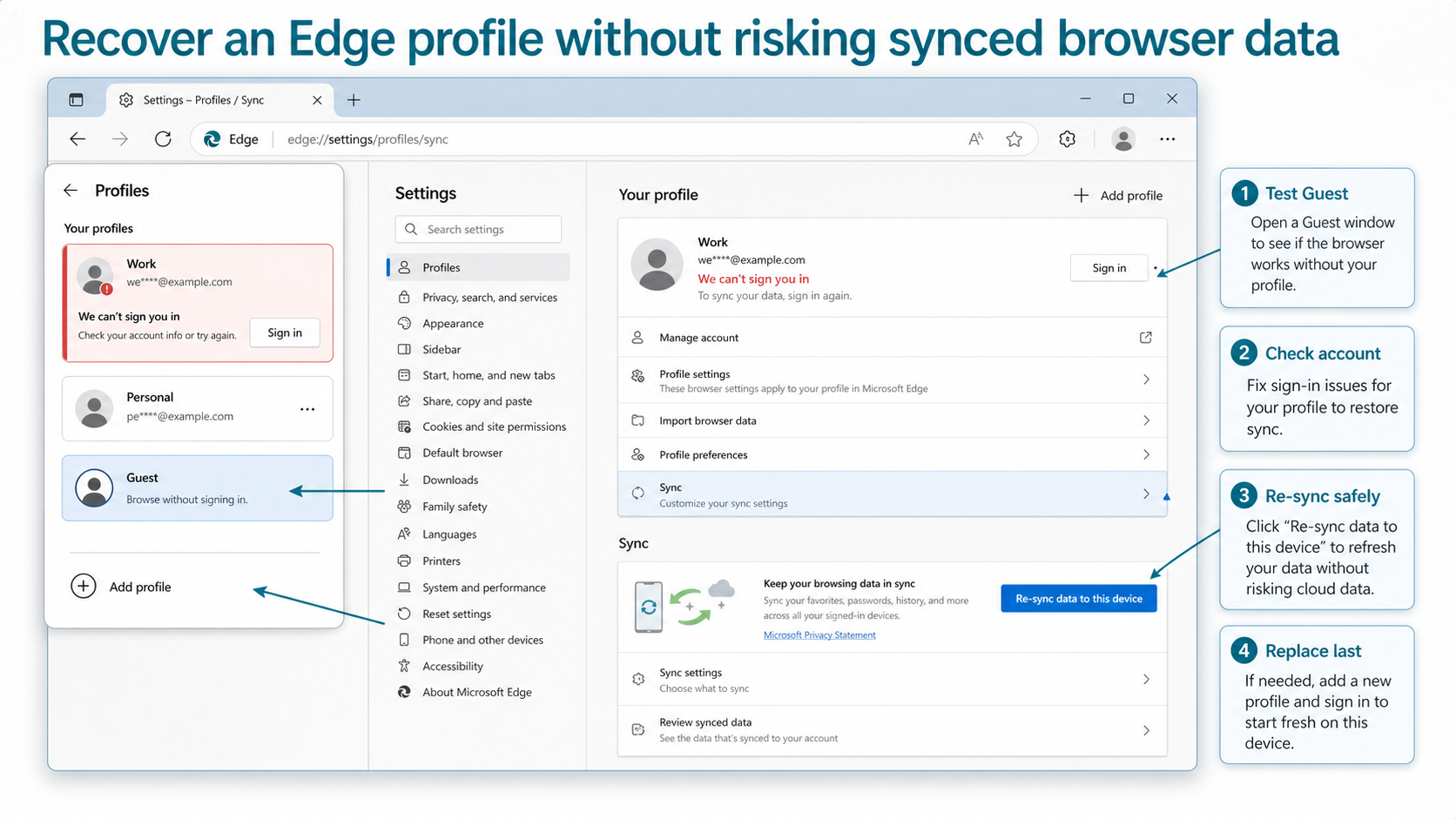
Open Edge from another existing profile or Guest mode. If the browser launches normally, Windows and the Edge installation are probably usable; the fault follows one profile. If no profile opens, repair or update Edge through approved Windows management before manipulating personal data.
Create a clean-profile comparison only as a test at first. A new profile opening successfully does not prove the old profile data is safely synced.
After each change, repeat the smallest test that originally failed. A successful result in a different client narrows the fault but does not automatically repair the original one. Record the boundary, apply the targeted correction, and test again in the user’s normal workflow.
Check the identity layer
Confirm the account can authenticate
Sign in to the Microsoft account or work portal in a separate browser window. Resolve expired passwords, MFA prompts, or account blocks there.
Read the profile message
A sign-in error, Sync is paused message, or organization-managed notice points to different owners. Microsoft lists cached credentials, account changes, policy restrictions, network controls, and profile conflicts among common sign-in causes.
Try a controlled resync
When Edge opens enough to reach Settings > Profiles > Sync, use the documented resync options. Do not select Reset sync until you understand which device holds the good copy.
A useful test changes one variable at a time. Keep the same account and content while switching only the client, then keep the client and switch only the account or item. This produces evidence you can act on instead of a pile of unrelated resets.
Clean only what the evidence supports
For repeated authentication prompts, clear cookies and cached files for the affected sign-in flow, then restart Edge. The targeted browser-data cleanup is preferable to erasing browsing data across every time range without a reason.
If a work profile is governed by policy, do not rename or remove its data folder as an early fix. Ask IT to check Edge management and sign-in logs, especially when multiple users are affected.
Avoid destructive cleanup until you know whether the authoritative copy is in the cloud, mailbox, calendar, or local profile. Export or verify important data first. In managed environments, a policy result should be handed to the administrator with exact timestamps and reproduction steps rather than worked around.
Move to a replacement profile safely
First verify favorites, passwords, collections, and extensions against another synced device or an approved export. Create the replacement, sign in, allow sync to complete, and compare the important data. Remove the broken profile only after the replacement is complete and organizational retention rules permit it.
After each change, repeat the smallest test that originally failed. A successful result in a different client narrows the fault but does not automatically repair the original one. Record the boundary, apply the targeted correction, and test again in the user’s normal workflow.
Protect favorites and passwords during the test
Use a harmless browser profile for the final comparison, not the user’s confidential production content. Note the signed-in account, client, approximate time, and exact visible result. Then repeat the same action once from a second supported client. A difference between clients points toward local state or a client-specific experience; the same result everywhere points toward the account, source data, policy, or service.
Keep the test matrix small enough to explain. One row can represent the normal user and original item, a second the same user with a clean test item, and a third an approved comparison account when available. Change only one condition between rows. This discipline matters because simultaneous sign-outs, cache clearing, permission changes, and item recreation can hide the cause and make the next incident harder to diagnose.
Check the owner boundary before applying the result. End users can usually refresh a client, choose a supported item, or correct their own setting. Owners control sharing and source data. Administrators control tenant policy, effective assignments, managed browser rules, licensing, and service-health escalation. Stop at that boundary and provide evidence instead of asking the user to bypass a security decision.
Finally, return to the ordinary workflow and repeat the exact action that failed. Confirm both the immediate screen and the downstream result: the other attendee’s view, the saved calendar item, the mailbox copy, the flow run, the synced browser data, or the participant’s lobby entry. A button appearing is only partial recovery when the expected output is still missing.
Edge profile recovery FAQ
Can I password-lock one Edge profile?
Edge profiles are separated identities, but they are not independent encrypted vaults with a profile-only password switch. Use Windows account separation, device locking, and organizational controls for real access boundaries.
Will removing a profile delete cloud data?
Removing local profile data is not the same as intentionally deleting cloud-synced data, but sync state and account type matter. Verify another copy or export before removal rather than assuming every item reached the cloud.
Why does Guest mode work when my profile does not?
Guest mode avoids much of the affected profile’s local state, extensions, and identity tokens. That result narrows the fault but does not identify whether sync, credentials, policy, or local files caused it.
Recover first, reset last
The best result is a repeatable test that identifies the responsible layer and leaves the user’s data and security controls intact. Keep the successful change, undo speculative ones, and share the narrow evidence with the owner of any policy or service dependency. Retest in the normal client before treating the incident as resolved. If the symptom returns, compare it with the recorded boundary before repeating cleanup; recurrence after the same trigger is far more useful than a vague report that the app failed again.