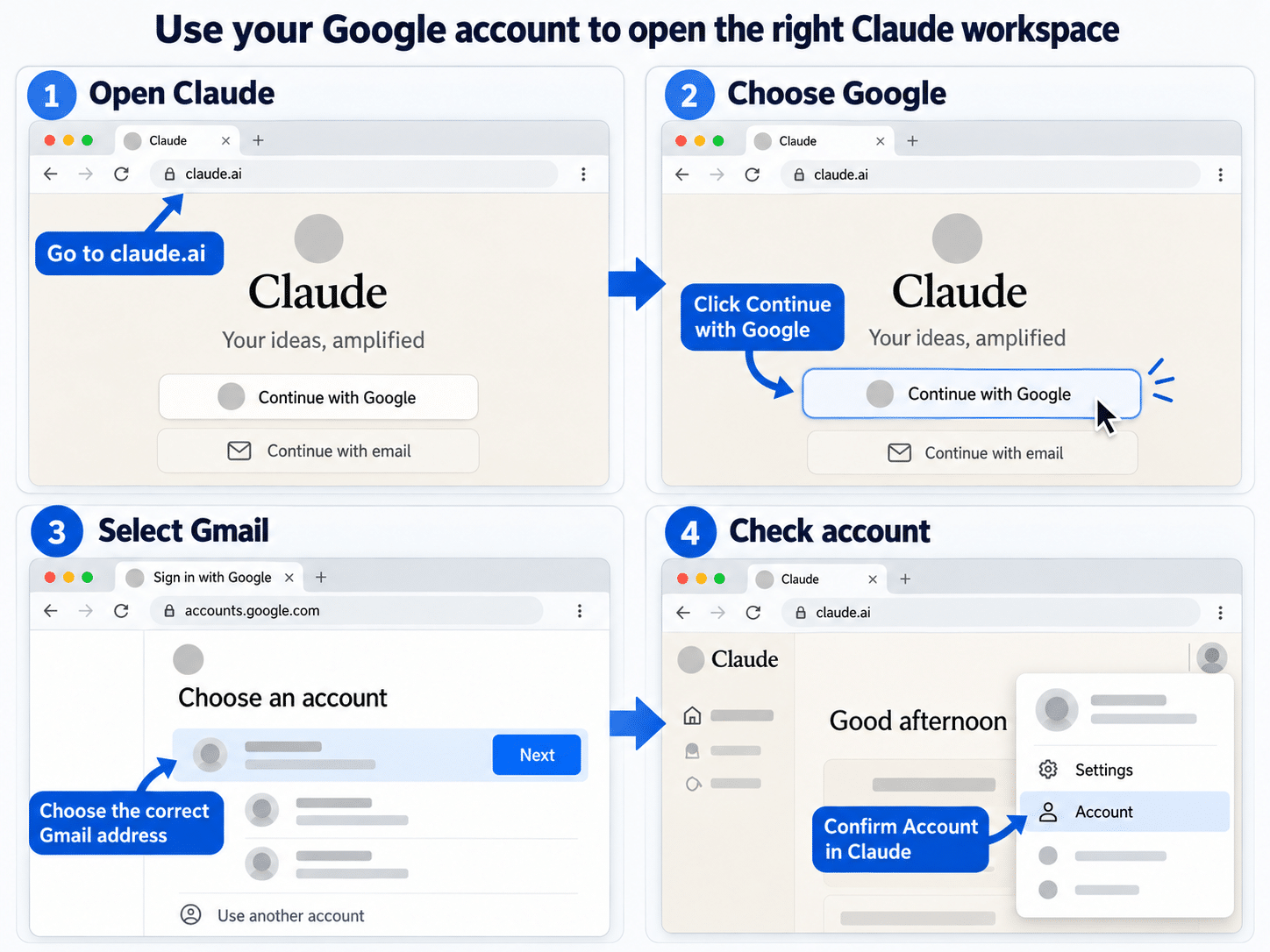
The quickest way to open Claude with a Gmail address is to visit claude.ai, select Continue with Google, and choose the Google Account that owns that Gmail address. Complete any Google verification prompt, then wait for Claude to open. Do not type the address into Claude’s email field if your intention is to use Google sign-in; that field starts a different, email-link flow.
This distinction matters when several Google accounts are already open in the browser. The Gmail address shown in the account chooser determines which identity Google sends to Claude. A successful sign-in is not complete until Claude opens and you confirm that the expected account or workspace is active.
Choose the Google route before entering your address
Claude presents two entry paths: Continue with Google and Continue with email. Both can involve the same Gmail inbox, but they do not ask you to authenticate in the same way.
Use Continue with Google for your Google Account
Select Continue with Google when you want Google to authenticate the account. Google may show an account chooser, ask for the Gmail address, request the Google password, or require a second verification step. Follow that prompt until the browser returns to Claude.
Your Google password belongs only in Google’s sign-in screen. If a page that does not belong to Google asks for it, stop and check the address bar before proceeding. The normal handoff starts on Claude, moves to the Google Account screen, and then returns to Claude.
Use Continue with email only for a secure login link
The email option does not create a separate Claude password. Anthropic sends a message titled Secure link to log in to Claude.ai to the address you enter. Opening the link on the same device signs you in; opening it on another device can produce a code that must be entered on the original device.
Choose one route deliberately. If you began with Google, finish the Google prompt instead of opening a separate email-link attempt in another tab.
Sign in to Claude with your Gmail address
Use this sequence in a normal browser window so you can see which Google profile is active:
- Open https://claude.ai and confirm the address bar shows the official Claude domain.
- Select Continue with Google.
- In Choose an account, select the required Gmail address. If it is not listed, choose Use another account and enter it.
- Complete the Google password or verification prompt. If Google asks whether to continue to Claude, review the selected email before approving.
- Wait for Claude to open, then select your initials and confirm the displayed account is the one you intended to use.
Select the correct Google identity
When the chooser lists a personal Gmail address and a work Google account, do not rely on the browser’s default selection. Read the complete address. Two accounts can have similar display names while leading to different Claude histories, plans, or organization access.
If the wrong Google account is selected automatically, cancel the prompt and start again. You can also open a private browser window for a clean account chooser, but remember that a private window will not keep the session after you close it.
Confirm Claude opened the expected account
The visible Claude home screen proves that authentication finished. The stronger check is to open the account menu and verify the email or active workspace. If you use both a personal Claude account and a Team or Enterprise workspace, choose the required workspace and look for the indicator beside the active one.
Send a harmless test prompt only after that check. Seeing the expected conversation list, project list, or plan is additional evidence that you entered the correct account.
Fix a Google sign-in loop or generic login error
A login loop usually needs a browser or connection check, not repeated password attempts. Preserve the exact error message and try the narrowest relevant fix.
The Google chooser returns the wrong account
Cancel the flow, sign out of the unwanted Google profile, or retry in a private window. Then select Continue with Google again and choose the intended Gmail address. Do not delete Claude data merely because the account chooser picked the wrong identity.
Claude reports an error after Google returns
Anthropic recommends turning off a VPN, temporarily disabling browser extensions, and clearing browser cache and cookies for generic login errors. Try one change at a time, then repeat the sign-in. If you need a fuller browser sequence, follow that browser recovery sequence without changing unrelated Google security settings.
Check Claude’s status page when the same error appears across browsers or devices. A service incident will not be fixed by repeatedly reconnecting your Google Account.
Reset Claude’s Google connection only when needed
If the Google handoff remains broken, open myaccount.google.com/connections, locate Claude by Anthropic, select See details, and stop using Sign in with Google. Return to Claude and choose Continue with Google to create a fresh connection.
This reset removes the Google sign-in authorization; it is not the same as deleting the Claude account. Use it after the lighter browser checks, because reconnecting should not be the first response to a one-time error.
Keep the right account across devices
Use the same Gmail address when signing in on another computer, the Claude desktop app, or a mobile device. If the app opens but familiar conversations are absent, first verify the email and active personal or organization workspace. The account-scope checklist can help distinguish a wrong-account view from genuinely missing history.
Avoid creating a second sign-in session while diagnosing the first one. Finish the flow on the device where it began, especially when an emailed link produces a verification code for that original device.
Questions about Claude and Google sign-in
Can I use any Gmail address to log in to Claude?
You can choose a Google Account in the Continue with Google flow. To reach an existing Claude account, use the same address associated with that account. If the address is new to Claude, the service may take you through account setup rather than opening an existing history.
Do I need a separate Claude password?
No. Anthropic says Claude does not currently offer a dedicated account password. Google sign-in uses your Google Account authentication, while Continue with email sends a secure login link to the inbox.
Why did Claude send a login email instead of opening Google?
That happens when you type the Gmail address into the email field and select Continue with email. Return to the first login screen and choose Continue with Google if you want Google to authenticate the session. Use only the newest login email if you intentionally choose the email-link method.
What should I check if Claude opens with no conversations?
Confirm the complete email address and the active personal or organization workspace before clearing data. A successful login can still land in a different account scope. Switch to the expected workspace, then check Chats and tasks or the relevant project.
Use the same route next time
For a Gmail-based Google login, the reliable pattern is simple: start at Claude, choose Continue with Google, select the exact Gmail address, complete Google’s verification, and confirm the active account inside Claude. Keep the email-link option as an alternative, not as a parallel attempt during the same sign-in.
If the flow fails, record where it stops: before the Google chooser, inside Google verification, or after the return to Claude. That detail tells you whether to correct the selected Google identity, repair the browser session, reset the Claude connection, or wait for a service incident to clear.