Have you ever squinted at your Windows 11 desktop trying to locate a specific icon? Or perhaps you’ve found your desktop cluttered with oversized icons taking up too much space? “I just upgraded to Windows 11, and the desktop icons are either too small to see clearly or too large and disorganized. How can I resize them to fit my preferences and screen resolution?”
Resizing desktop icons in Windows 11
The ability to modify icon spacing and size on your Windows 11 desktop isn’t just about aesthetics. It directly impacts your productivity and visual comfort. Users with high-resolution displays often struggle with tiny icons, while those with visual impairments benefit from larger icons. Windows 11 offers several methods to adjust icon dimensions, allowing you to customize your workspace according to your specific needs and preferences.
Windows 11 desktop icon size settings overview
This tutorial will guide you through multiple methods to change icon dimensions on your Windows 11 desktop. We’ll cover quick keyboard shortcuts, context menu options, and Settings app adjustments. These techniques work on any Windows 11 installation without requiring additional software. You’ll need basic navigation skills and administrator access to your Windows 11 computer.
Resize desktop icons in Windows 11
Method 1: Using the View menu to adjust icon size
- Right-click on an empty area of your desktop to open the context menu, then hover over “View” to reveal the icon size options available in Windows 11.
- Select from the three preset sizes offered: “Large icons,” “Medium icons,” or “Small icons” based on your preference and screen resolution.
- The change will apply immediately to all icons on your desktop, giving you instant feedback on whether the size meets your needs.
- This method provides limited size options but is the quickest way to make basic adjustments without navigating through multiple menus or settings.
- Remember that this setting is specific to the desktop and won’t affect icons in File Explorer or other Windows locations.
Method 2: Using keyboard shortcuts to increase or shrink desktop icons
- Hold down the Ctrl key on your keyboard and scroll your mouse wheel up to increase the size of desktop icons in incremental steps.
- Scroll down while holding Ctrl to decrease the icon size, giving you more precise control than the preset View menu options.
- This keyboard shortcut method works in real-time, allowing you to stop at exactly the size that looks best on your screen.
- The Ctrl+scroll combination provides more size variations than the View menu, with approximately five different size increments available.
- This technique also works in File Explorer windows, making it a versatile shortcut to learn for consistent icon sizing throughout Windows 11.
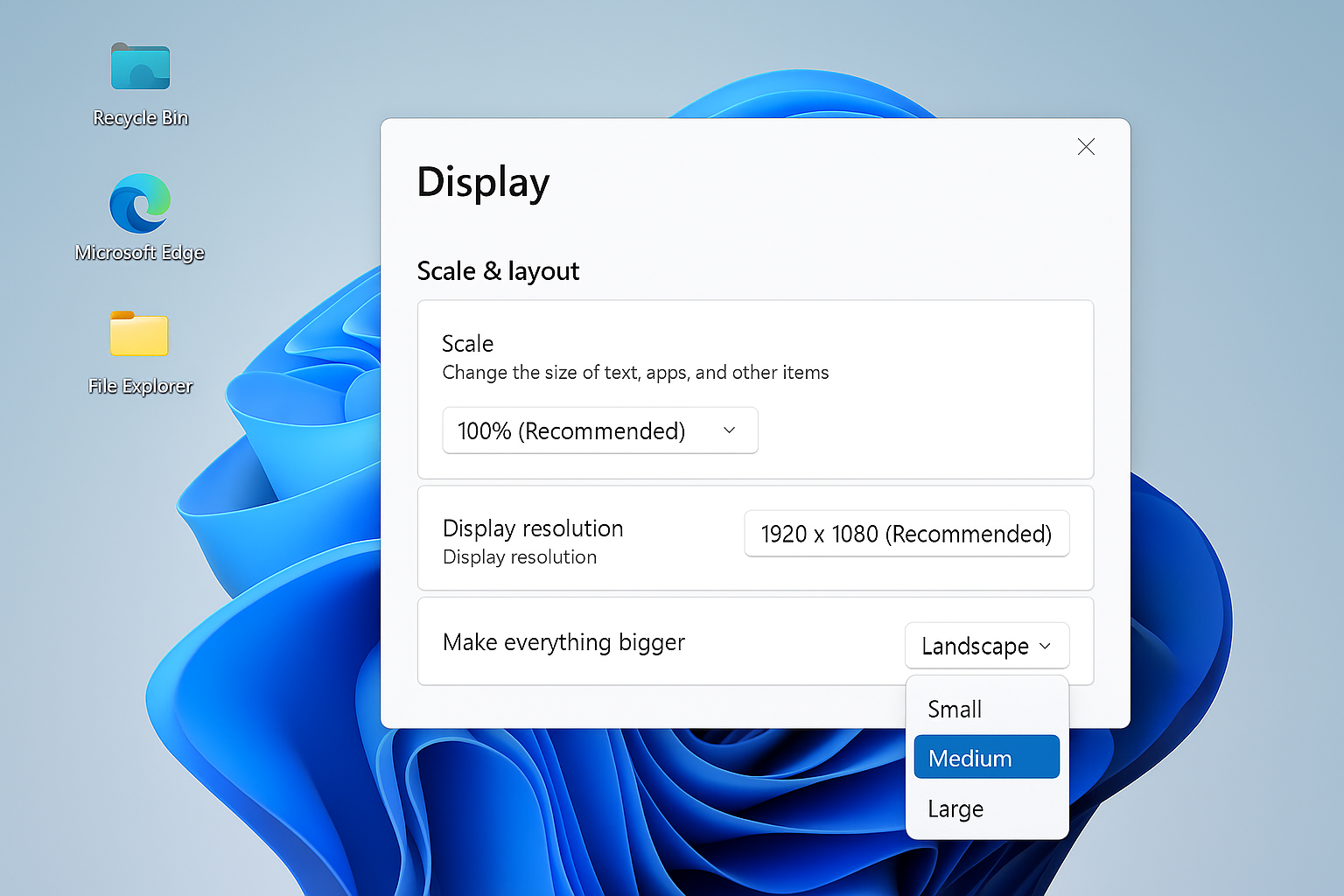
Method 3: Adjusting icon scale options through Display settings
- Right-click on an empty area of the desktop and select “Display settings” to open the Settings app focused on display options.
- Scroll down to find the “Scale & layout” section, which controls the overall scaling of text, apps, and icons throughout Windows 11.
- Adjust the scaling percentage (100%, 125%, 150%, etc.) to proportionally resize all elements including desktop icons.
- Click “Apply” after selecting a new scale setting, and Windows will adjust and may require you to sign out and back in for all changes to take effect.
- This method affects all interface elements, not just desktop icons, making it ideal when everything on screen appears too small or large.
- Note: you can create a desktop shortcut to Display settings for quick access to scaling options if you frequently need to adjust icon sizes for different tasks or users.
Resize Windows desktop icons without changing the whole display
Treat this as a short decision process rather than a long reset checklist. Use the desktop View menu or Ctrl plus mouse wheel for icon-only sizing. The first result should determine the next action.
Preserve a trustworthy baseline
Change display scaling only when text and applications also need adjustment. Capture the current scaling and resolution before experimenting. Use a disposable example when the action could alter shared data or notify other people.
Before deeper repair, check multi-monitor behavior because each display can use different scaling. Do not delete profiles, credentials, or source records merely to make an error disappear.
Test the reader’s real workflow
Test after sign-out on high-DPI screens. Use accessibility settings when visibility needs go beyond icon size. Repeat the test after reopening the client and, when relevant, after synchronization or refresh.
If it still fails, note the exact error, product version, account, device, and time. Compare one other supported client only when that comparison answers a specific question. Treat grayed-out organization settings as an administrator boundary.
The final check should be performed by the person or role that normally uses the feature. Their result may expose permissions or cached state that an owner cannot see. Remove private information from evidence, revert changes that did not help, and preserve the working configuration for future recovery. Recheck the result after the next sign-in or scheduled cycle when timing can affect it. Keep a concise note of the successful condition so it can be restored later. Verify that the change did not alter unrelated files, permissions, or settings. Recheck the result after the next sign-in or scheduled cycle when timing can affect it. Keep a concise note of the successful condition so it can be restored later. Verify that the change did not alter unrelated files, permissions, or settings.
Troubleshooting desktop icon size issues
- If icon sizes reset after a system restart, check your display driver settings as some graphics cards have scaling options that override Windows settings, requiring you to disable these overrides in your graphics control panel.
- When icons appear blurry after resizing, right-click on the desktop, select “Display settings,” scroll to “Scale & layout,” and toggle “Fix scaling for apps” which helps Windows better handle icon resolution at different sizes.
- If certain icons don’t resize properly or appear corrupted, rebuild the icon cache by opening Command Prompt as administrator, typing “ie4uinit.exe -show” and pressing Enter, which refreshes all icon data without requiring a system restart.
- For users with multiple monitors with different resolutions, you may need to adjust scaling settings individually for each display through Settings > System > Display > select the display > Scale & layout.
- To restore default icon size on Windows 11 desktop quickly, right-click the desktop, select View, and choose “Medium icons” which is the standard setting for most Windows installations.
- If you’re having trouble with system responsiveness while adjusting icon sizes, you may need to stop startup programs in Windows 11 to improve overall system performance and ensure smooth display scaling.